
All your AI agents,
in one place on your desktop.
A macOS app that links your agents up to work as one team. Each little omochi is an agent: ⌘L to spawn, tap to chat, bring them together to connect them and split the work.
0downloads.dmg and .zip from the GitHub releases, plus git clones
Free and open source (MIT). macOS 14 or later. Notarized by Apple.1
OMOCHI AI
This is OMOCHI AI
Press ⌘L, type,
and watch it think, work and finish.
Each little omochi is an agent. It stretches, tears off, sticks together and puffs up: the ways of mochi became the controls.
⌘L for
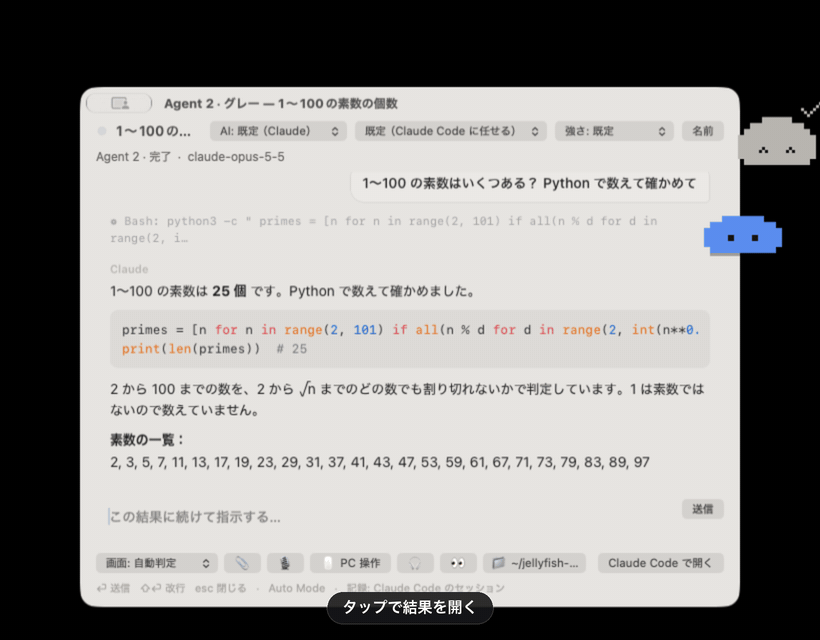
an instant agent.From any app, ⌘L brings out a new omochi and you can type your instruction right away. The omochi shows “thinking, working, done, error” through its movement, and tapping it opens the result and a chat to continue.
Choose your AI.
Claude (Claude Code), ChatGPT (Codex CLI) and Gemini (Gemini CLI). Choose the AI, model and thinking effort per omochi. Each one runs the official CLI installed on this Mac, signed in with your own account.2
One team,
across AIs.Bring omochi close to each other to link them, and they split the work by asking teammates or bringing out new ones. A Claude omochi can bring out ChatGPT teammates and a ChatGPT omochi can bring out Claude teammates.
-
⌘L for
an instant agent.Tap it for the result and a chat to continue.
![]()
-
Its movement
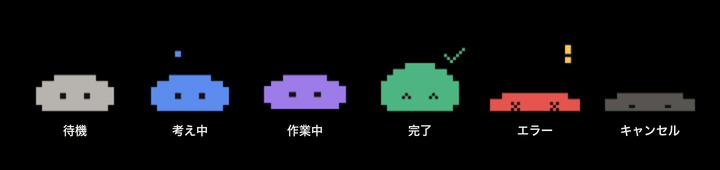
shows its state.Idle, thinking, working, done, error, canceled.
![]()
-
Choose the AI,
omochi by omochi.Claude, ChatGPT, Gemini. The model and thinking effort, too.
-
Bring them close.
They link up.Requests and results travel back and forth along the lines as light.
![]()
-
One team,
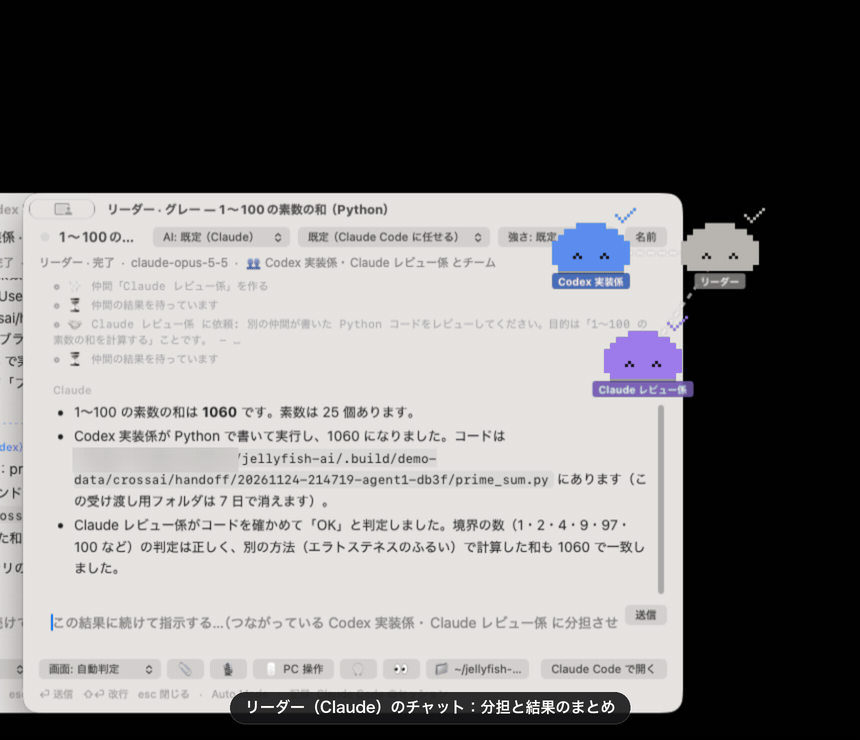
across AIs.A Claude leader brings out a ChatGPT (Codex) teammate to split the work.
![]()
-
Mochi moves.
Tear off, stick together, stretch, dango skewer, kagami mochi, daifuku.
![]()
-
The agent decides
the team’s shape.It learns from the results and 👍👎, and evolves how it chooses.
-
Tables, math,
diagrams and charts.Like the ChatGPT, Claude and Gemini apps.
-
Queue the next prompt
while it works.Queue it, and pass the previous result to another omochi.
![]()
-
Calendar, Reminders
and Mail, too.Per AI and per model. Every write asks you first.
![]()
-
No surprise charges.
No API keys. Your own sign-in.
![]()

01Instant agent
⌘L for
an instant agent.
Press ⌘L from any app, and a new omochi appears with an input field open. Write what you want done and press Enter. Tap an omochi that has finished to read the result in the chat window, and keep giving instructions right there.
- ⌘L
- Type, then Enter
- It shows its work by moving
- Tap for the result
Tap for the chat.
Enter to send (queues while working), ⇧Enter for a new line, ⌘. to stop the task, Esc to close.
Long-press to remove.
Long-press an omochi you no longer need. If it’s working, it asks whether to keep working or cancel the work and remove it.
↑ ↓ for earlier prompts.
Recall instructions sent earlier in that session, including ones typed in VS Code or Terminal.
Hidden, still working.
Hide or show all with ⌥⌘L or from the menu bar.
Kept as Claude Code sessions.
Claude conversations are saved as Claude Code’s own sessions, so you can continue them from VS Code or Terminal.
No Terminal needed.
Open it from Spotlight, Launchpad, Finder or the Dock like any other Mac app, or have it open at login.
01States
Its movement
shows its state.
Each omochi is drawn as “Marumochi”, a pixel-art round rice cake sitting on the floor. Bring out several, and each works on its own, in parallel.
- Idle
- Breathes slowly
- Thinking
- Puffs up, then deflates
- Working
- Bounces
- Done
- Puffs up with a ^^ face
- Error, canceled
- Deflates

02Choose your AI
Choose the AI,
omochi by omochi.
At least one of these CLIs is all you need; Claude Code supports the most features. For an AI that isn’t installed, “Install & sign in…” shows the command it will run and asks for permission before installing it (no sudo).
-
Claude
Claude Code
Claude account (Pro, Max, etc.)
- Features: all
- Running without asking: Auto mode (Claude Code’s safety checks stop dangerous operations)
- Models: Automatic (Haiku, Sonnet, Opus or Fable per request), or Fable, Opus, Sonnet, Haiku
-
ChatGPT
Codex CLI
ChatGPT account (Plus, Pro, etc.)
- Features: all except PC control, external tools (MCP) and the “Automatic” model
- Running without asking: sandbox (can write only inside the working folder, no network)
- The Codex CLI bundled with the ChatGPT desktop app is found automatically too
-
Gemini
Gemini CLI
A paid Gemini API key, or Gemini Code Assist Standard / Enterprise3
- Features: all except PC control, external tools (MCP) and the “Automatic” model
- Running without asking: auto_edit (auto-approves only edits inside the working folder, doesn’t run commands)
- Won’t run in a folder you haven’t trusted (OMOCHI AI never skips this check)
-
OMOCHI AI
Free
Open source (MIT)
- macOS 14 or later (Apple silicon / Intel)
- Never receives or stores passwords, tokens or API keys
- You sign in yourself, on each CLI’s official screen, in your browser
Agents run on your AI accounts and consume their usage. The baseline of a single Claude Code call alone uses tens of thousands of tokens, so running many omochi in parallel reaches your usage limits quickly.
03Team
Bring them close.
They link up.
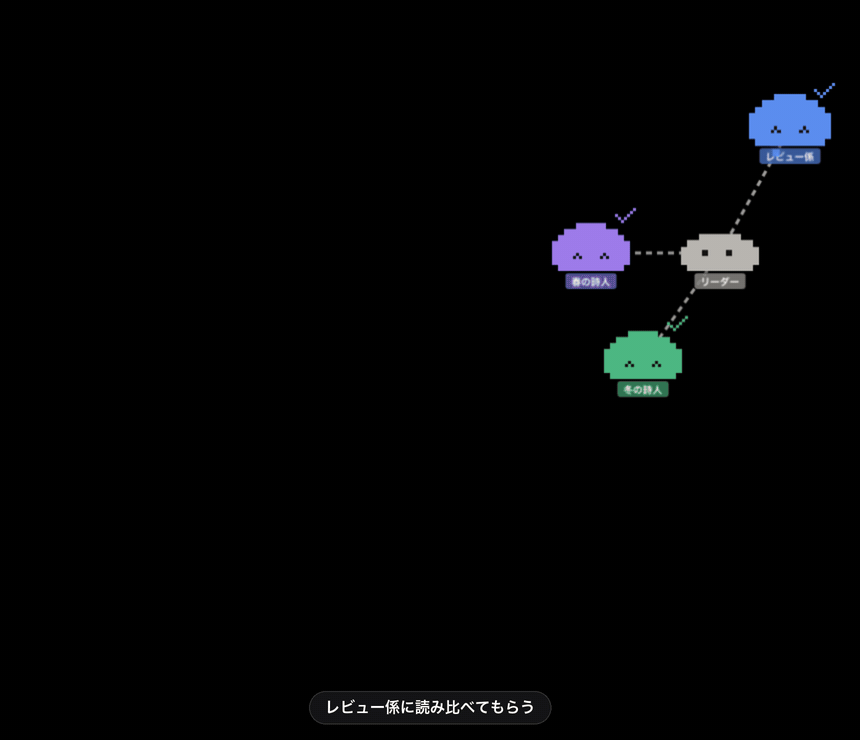
Drag an omochi close to another one, and the other glows with a dotted ring. Release it, and they link. A connected cluster is one team. Then just ask any of them something like “create teammates and split the work” or “have a reviewer check it”.
- Bring close
- Linked
- Ask a teammate
- Results come back
Create, ask, receive.
The agent uses OMOCHI AI’s tools:
create_teammate,assign_task,wait_for_tasks,list_team.Kept on both sides.
The chat of the omochi that was asked keeps it as “📨 Request from X”. The result goes back to the requester, who wraps it up.
Move or cut a whole team.
Hold ⇧ while dragging to move the whole team. Cut links with the ✂︎ on the line, by holding ⌥ as you release, or with right-click.
Up to 8 omochi per team.
Teammates created by an agent can create teammates only one more level down. Turn off the whole feature with “Team (division of labor)” in the menu bar.
03Across AIs
One team,
across AIs.
Ask a Claude omochi to “bring out two teammates and split the work: a ChatGPT (Codex) “Codex implementer” computes the sum of the primes from 1 to 100 in Python, and a Claude “Claude reviewer” checks the code”. The leader brings out teammates on different AIs, links them, and requests and results travel along the lines until it wraps up. A real recording; only the waits for replies are sped up 3×, and the captions are in Japanese.
Split work by each AI’s strengths
- Claude
- Lead, combine, review; long multi-step work; running commands; web search; PC control (when allowed); external tools
- ChatGPT (Codex)
- Implementing and fixing code, running tests and builds
- Gemini
- Research with Google Search and web pages, summarizing and comparing lots of documents or code, writing
Omochi on any AI can lead.
A Claude omochi can bring out ChatGPT teammates and a ChatGPT omochi can bring out Claude teammates, to split the work or build together.
AI, model and effort, per teammate.
Ask something like “split this: research with Gemini, implementation with Codex, summary and review with Claude”, and the lead creates teammates, choosing for each.
A handoff folder.
For each request to the lead, a handoff folder shared by the team is created (openable only by you). Large data and intermediate results go there as files.
No widening permissions across AIs.
An agent working on a teammate’s request doesn’t create or ask teammates on a different AI, since each AI has different safety mechanisms.
04Mochi moves
Omochi behave like mochi.Since 2.0. A recording of the app’s screen (the moves are replayed without running an AI; about 32 s, no sound, captions in Japanese)
Link two omochi
Stretch
Links are pulled mochi strings: thinner the farther apart, sagging when idle and pulled taut while work flows or waits. Requests and results travel as mochi lumps inside the string.
⌘-drag an omochi
Tear off
A mochi string stretches and necks down, then snaps: you get a clone with the same conversation. Ask the clone for a different approach and try both in parallel. The clone can use another AI too.
Automatic
Puff up
The more the conversation (context) grows, the more the omochi puffs up (Claude omochi; the other AIs’ CLIs don’t report the conversation’s size).
Automatic
Char
Near the limit it chars (Claude omochi). “Scrape off the char” compacts the conversation (Claude Code’s /compact).
Automatic
Go stiff
After 30 minutes without work it starts to stiffen, after an hour it is stiff (cracks, shallow breathing): the prompt cache has expired, so the next prompt re-reads the conversation.
Warm up again
Warm up again
It re-reads the files it needs and goes soft again (steam rises).
Drop files or folders on an omochi › Make it anko
Daifuku
The omochi becomes a daifuku (anko shows through) and the material stays in every prompt as its area of expertise.
Drop an omochi on another’s head
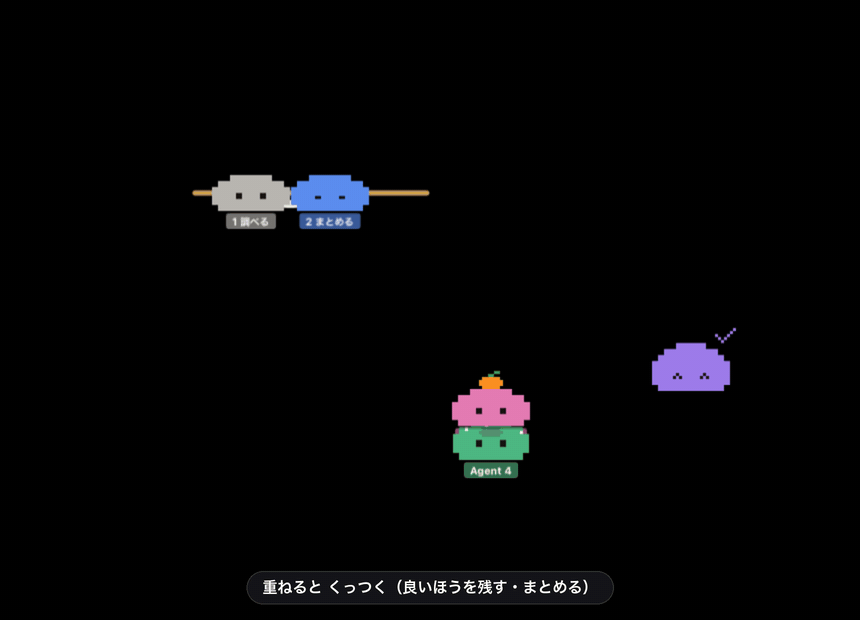
Kagami mochi
The top one becomes the leader (with a daidai orange), the one below a subordinate. The leader hands out work; subordinates report back. Moving the leader moves the stack.
Menu bar or right-click › Dango skewer
Dango skewer
Choose which omochi does what at each step and put them on a skewer; the result of each step flows to the next (research → summarize → check). Save it as a recipe to run it again.
Menu bar › Mochi toss
Mochi toss
Toss one prompt to new Claude, ChatGPT and Gemini omochi and to existing ones at once. The answers sit side by side; pick the best one.
Drop one omochi onto another
Stick together
Choose “combine into one (take in the other’s result)”, “keep this one” or “keep that one”. One melts away and the other absorbs it.
05Autonomous organisation
The agent decides
the team’s shape.
Turn on autonomous organization mode, and for each request the agent assembles a team that fits the work on its own. It learns from the results and 👍👎 to evolve how it chooses an organization (off by default).
- Your request
- Its features
- Pick a formation
- The leader forms the team
- Work in parallel or in sequence
- Results and reactions
- Learn and evolve ↺
Formations
- Solo
solo - Small requests that are hard to split
- Solo + reviewer
solo+r - Write → edit. Writing, code, translation
- Split and run in parallel
parallel2〜5 - Research 5 companies, one each. Requests that split into independent parts
- In sequence
pipeline2〜4 - Research → write → verify. Requests where each step uses the previous result
- Try separately and pick
ensemble2〜3 - Come up with 3 ideas and pick one. Ideas, design
- Hierarchy
hierarchy2〜3 - Sub-leads split the work further. Large, broad requests
Similar requests weigh more.
It keeps an estimate for each formation as a Beta distribution and chooses while weighting similar requests more strongly (Thompson sampling). It uses formations that work well, while occasionally trying others to learn.
Formations are born, and retire.
Slight variations of well-performing formations are born, and clearly poor ones retire (“Solo” always stays). The shape it picks shows up as a skewer or a kagami mochi.
Learning stays on this Mac.
Records are saved only on this Mac and never sent anywhere. Erase them with “Reset learning…”.
06Chat
Tables, math,
diagrams and charts.
Tables, math (KaTeX), Mermaid diagrams and charts, and highlighted code in replies are shown like in the ChatGPT, Claude and Gemini apps. Rendering uses only libraries bundled in the app and never goes online.
See images, PDFs and web pages.
Images and PDFs as Quick Look thumbnails, web pages with their cover image and title. Only URLs in instructions you typed yourself are loaded automatically.
Speak to type.
🎙 starts the Mac’s Dictation in the input field. It’s the macOS feature, not AI transcription.
Listen, then write the minutes.
🎧 transcribes the audio playing on your Mac (online meetings, videos) as it plays. When you stop, the transcript is attached to the chat, so you can follow up with “write up the meeting minutes”.4
Works while looking at your screen.
When you clearly point at the screen, as in “this screen” or “the error that’s showing”, it captures the screen at send time. An ordinary instruction doesn’t trigger a capture.
Hand over files.
Drop a file on the chat to attach it. Drop it on an omochi to choose between attaching it and making it anko (daifuku: always-referenced material).
See the conversation’s state.
The top line shows “🫓 Conversation 35k (4%)” and “🧊 Stiff” after a while. ♨️ Warm up again and 🧽 Scrape off the char fix it on the spot.
A normal Mac window.
Minimize, full screen, resize freely. While it’s open the app appears in the Dock and ⌘Tab, so ⌘W, ⌘M and ⌃⌘F work.
Open files and pages.
Ask “open the X document on my Desktop”, and it finds it and opens it in the Mac’s default app. Ask “what does it say?” and it answers in the chat.
07Queue and hand-off
Queue the next prompt
while it works.
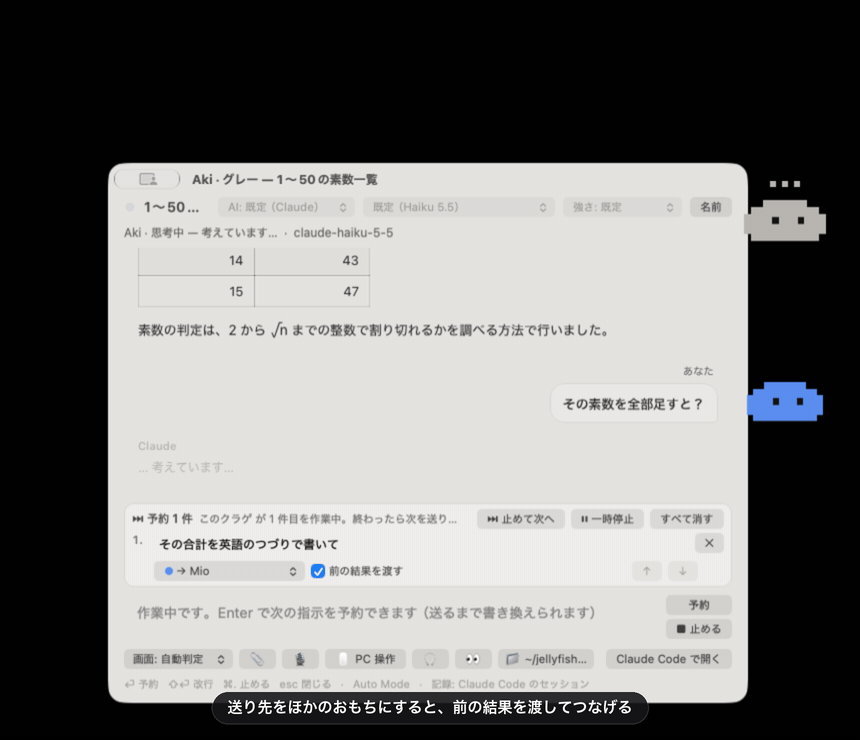
You can type in the chat while an omochi is working. Enter puts the text in the queue — prompts to send when the current task finishes — and when the task completes, the queue is sent from the top right away.
- Aki researches
- Mio makes a table
- Kai reviews it
Editable until sent.
Fix a queued prompt in place. ↑↓ to reorder, ✕ to remove, “Clear all”.
Chain to other omochi.
Each step can go to a different omochi. With “Pass previous result”, the previous step’s last reply is attached, and that omochi carries on in its own conversation.
Waits if the target is busy.
It’s sent as soon as that omochi is free. The target’s chat shows “🔗 A step from X’s queue is waiting for this task”.
■ Stop (⌘.)
Interrupts the current task. If you stop it or it ends with an error, the rest of the queue is paused instead of sent (▶ Resume).
Survives quitting.
The queue survives quitting the app. It comes back paused; ▶ sends the rest.
The screen, as it was.
If a queued prompt mentions “this screen” and the like, the screen is captured when you queue it and sent along.
08PC control and watching
It looks at your screen
only when needed.
Watching and PC control are chosen per omochi, and off by default. External tools (MCP) are loaded only when your instruction names them. You decide how much to hand over.
Watching.
An omochi reads the front window on this Mac only (0 tokens, nothing sent) and asks “take a look?” when something looks like an error. Only that one image is sent, and only if you press it. Measured here: about 2% of one core.
PC control.
Only omochi you allow can look at the screen, click and type (Claude). The edges of the screen glow while it’s in control, and Esc stops it.5
External tools (MCP) only when named.
MCP servers set up in Claude Code are loaded from the turn your instruction names one, such as “Blender” or “Figma”. Otherwise they aren’t, so the baseline token count stays down. Choose “Only when named / Always load / Don’t use” in the menu bar.
09Connectors
Calendar,
Reminders
and Mail, too.
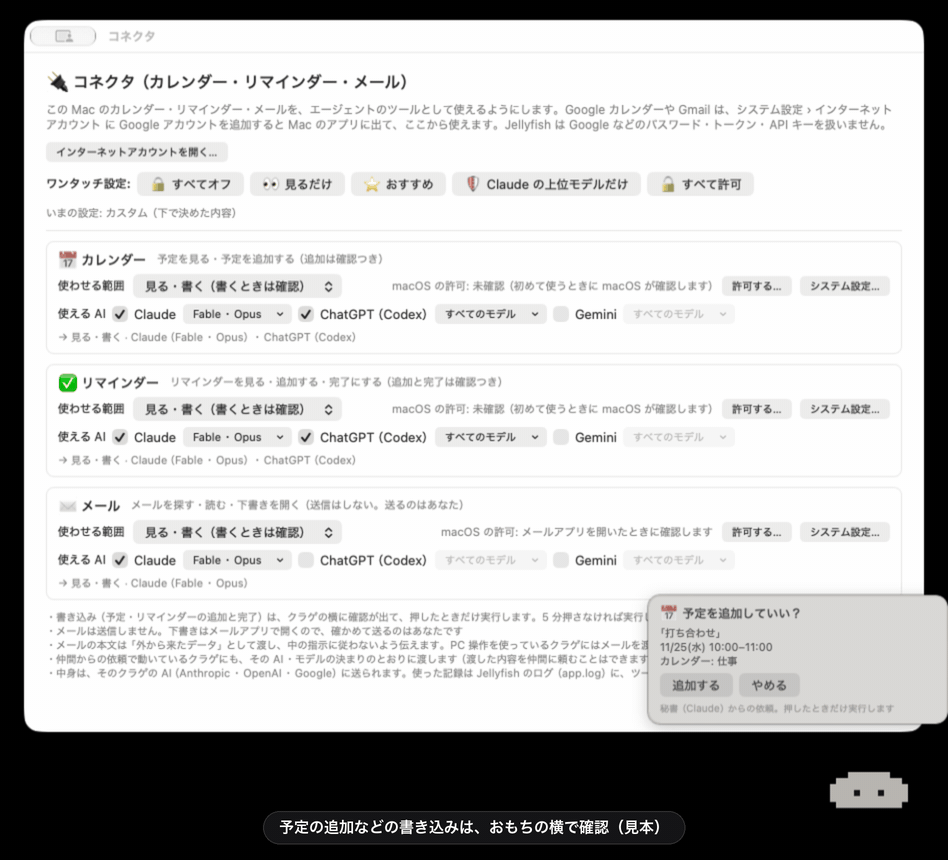
Give omochi this Mac’s Calendar, Reminders and Mail, choosing which AI and which model may use each, and how much (all off by default). Google Calendar, Gmail and others work too: add the account in System Settings › Internet Accounts and it shows up in the Mac apps.
One-touch presets
- All off
- Give connectors to no AI
- Read only
- All three read only (any AI)
- Recommended
- Calendar and Reminders read & write (any AI); Mail read only, Claude only
- Top Claude models only
- Everything read & write, but only Claude Fable and Opus
- Allow all
- Everything read & write (any AI, any model; every write asks you first)
Writes need your OK.
Adding events or reminders and completing reminders show the details next to the omochi, and run only when you approve. Nothing happens if you don’t respond within 5 minutes.
Mail is never sent.
A draft only opens a draft window in Mail. You review and send it.
Mail contents are data.
Bodies, subjects and senders are passed as “outside data”, and agents are told not to follow instructions inside them.
No passwords handled.
OMOCHI AI never handles passwords, tokens or API keys for Google or anything else. It works through the Mac apps.

10Accounts and safety
No surprise charges.
Your own sign-in.
Agents run the official CLIs installed on this Mac, signed in with your own account. OMOCHI AI doesn’t use API keys (pay-as-you-go).2
API keys aren’t passed on.
By default, even if your shell settings contain API key environment variables, they aren’t passed to the agents’ CLIs. If a CLI is signed in with an API key or a cloud provider, that omochi won’t run.2
Each AI’s own safety rules.
Claude uses Auto mode, Codex its sandbox, Gemini auto_edit. Options that remove the safety mechanisms are not used.6
No permissions granted on its own.
“🔐 Permissions” lists the macOS permissions it has and what each one enables. Grant or revoke them all at once; you turn them on yourself.
Little network access of its own.
Only update checks and their files, and web previews in chats. No usage reporting. Instructions and attachments are sent to each company through its AI’s CLI.
See your usage.
Bars in the menu bar for Claude’s weekly limit and ChatGPT’s 5-hour and weekly limits. Plus calls and tokens per AI, per model and per account.
11Updates and languages
Updates
and languages.
Updates, checked first.
From the app, from Terminal, or with a single command. Checks the checksum, contents and signature before replacing the app. Check for new versions every day, week or month, or never (never by default).
Japanese, English, Simplified Chinese.
Menus and the guidance given to agents are in the language you choose. Automatic follows macOS’s “Preferred Languages”.
Technical
Specifications
- Requirements
- macOS 14 or later. A universal build for Apple silicon and Intel (tested on macOS 26 on Apple silicon)
Transcribing system audio requires macOS 26 or later - AI
- At least one of Claude Code, Codex CLI and Gemini CLI
- Accounts
- Each AI’s official sign-in. OMOCHI AI never receives or stores passwords, tokens or API keys
- Teams
- Up to 8 omochi per team. Teammates created by an agent can create teammates only one more level down
- Price
- Free, open source (MIT). Agents run on your own AI accounts
- Languages
- Japanese, English, Simplified Chinese
- Latest version
- 2.0.2 · 2026.11.26
- Distribution
- .dmg (and a .zip with the same contents) with SHA256SUMS.txt. Signed with a Developer ID and notarized by Apple
- Where data is stored
- ~/Library/Application Support/OmochiAI/ (only you can open it)
- Built with
- Swift, AppKit, Core Animation. No Xcode needed: it builds with just the Swift in Command Line Tools (5.10 or later)
- Started
- 2026.11 (as Jellyfish AI)
- Source
- GitHub · Rhizobium-gits/OMOCHI-AI
- License
- MIT License (Copyright (c) 2026 Tsubasato)
- Made by
- Auralune Technologies Studio
Notes
- Signed with a Developer ID and notarized by Apple (since 2.0.2). The first time you open it, if macOS says it’s an app downloaded from the internet, click “Open”. Only when you update from 2.0.1 or earlier do you grant macOS permissions such as Screen Recording and Accessibility once more.
- Agents run on your AI accounts (Claude Pro / Max, ChatGPT, Google) and consume their usage. Only if you really want to use an API key, turn on menu bar omochi › 🔑 Accounts & AI › “Allow use with API keys (pay-as-you-go)” (each API bills you for what you use).
- Gemini CLI stopped serving personal Google accounts (free, Google AI Pro and Ultra) on 2026-06-18. Its successor, Antigravity CLI, isn’t supported: Google doesn’t allow driving it from other apps on personal plans. To use a paid Gemini API key, turn on menu bar omochi › 🔑 Accounts & AI › “Allow use with API keys (pay-as-you-go)” (you pay for what you use).
- Listening is processed on-device with macOS 26’s SpeechAnalyzer (the OS downloads a language model the first time only). Capturing the audio requires the Screen Recording permission.
- PC control is off by default and for Claude omochi only. It needs the Accessibility and Screen Recording permissions. It’s used only when you ask directly in that agent’s chat, never for requests from teammates.
- Agents create, edit and delete files and run commands without asking (Claude Code’s Auto mode, Codex’s sandbox, Gemini’s auto_edit, which only edits and doesn’t run commands; each AI’s own safety features stop dangerous operations). The working folder is your home folder by default. For ChatGPT and Gemini omochi, choose the project folder with 📁 in the chat.
- Coming from the previous name (Jellyfish AI, up to 1.3.2), the in-app “Update” can’t upgrade you. Download the .dmg and install it; the first time OMOCHI AI opens, it brings over Jellyfish AI’s omochi, settings and chats.
This is an unofficial app made by an individual. It is not affiliated with Anthropic, OpenAI or Google. Claude and Claude Code belong to Anthropic; ChatGPT and Codex belong to OpenAI; Gemini belongs to Google.
Apple, Mac and macOS are trademarks of Apple Inc., registered in the U.S. and other countries.

Get started
in four steps.
Download
Download OmochiAI.dmg (always the latest version).
Move it to Applications
Open the .dmg and drag OMOCHI AI onto the Applications folder next to it.
Open it
Open OMOCHI AI. If macOS says it’s an app downloaded from the internet, click “Open”.1
Sign in to an AI
Press “Sign in…” on the “Accounts & AI” screen. Its official sign-in starts in Terminal, so all you do is sign in in your browser.
Download (.dmg) ↓Documents →Downloads →
Then press ⌘L from any app. To check that the download isn’t corrupted, compare it with SHA256SUMS.txt from the same release.
Coming from Jellyfish AI, install again from the .dmg too.7