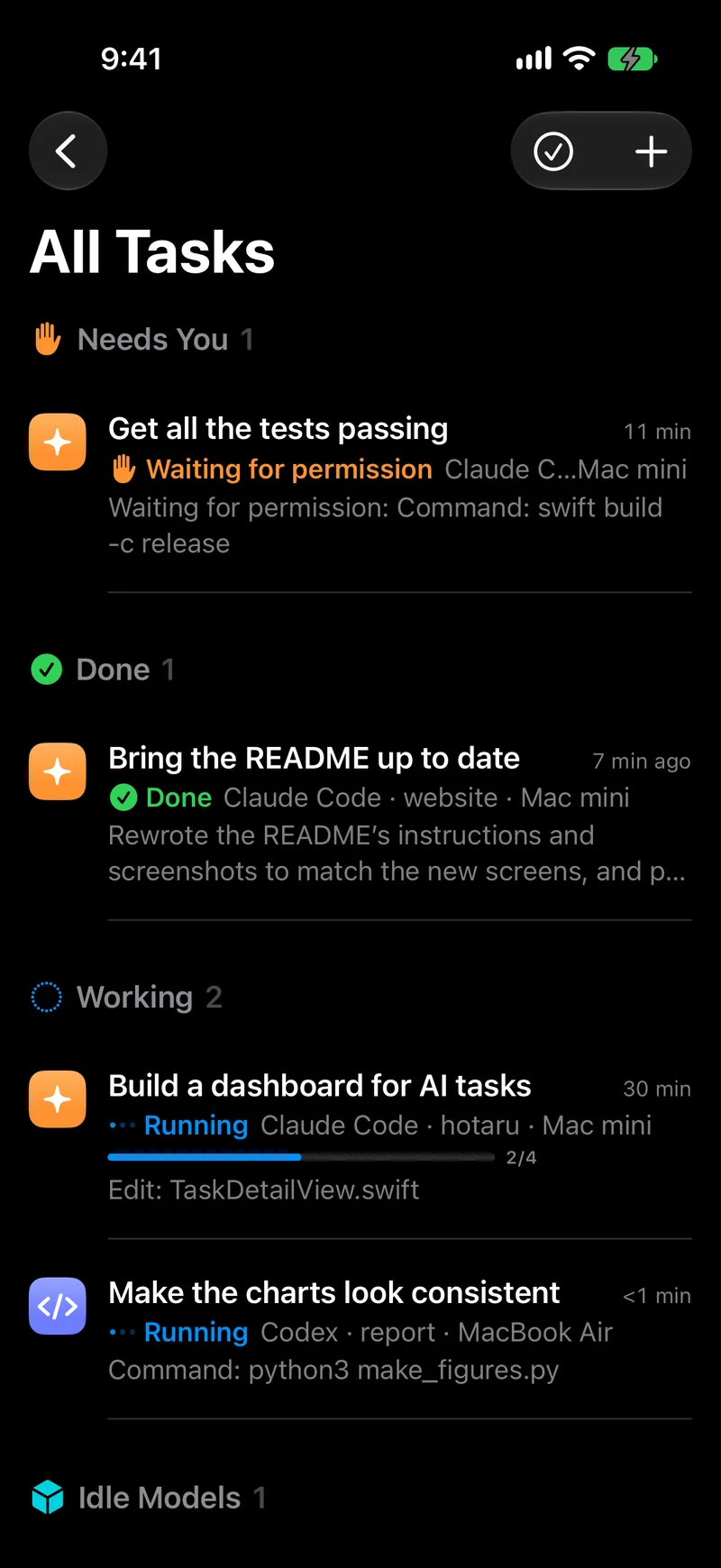
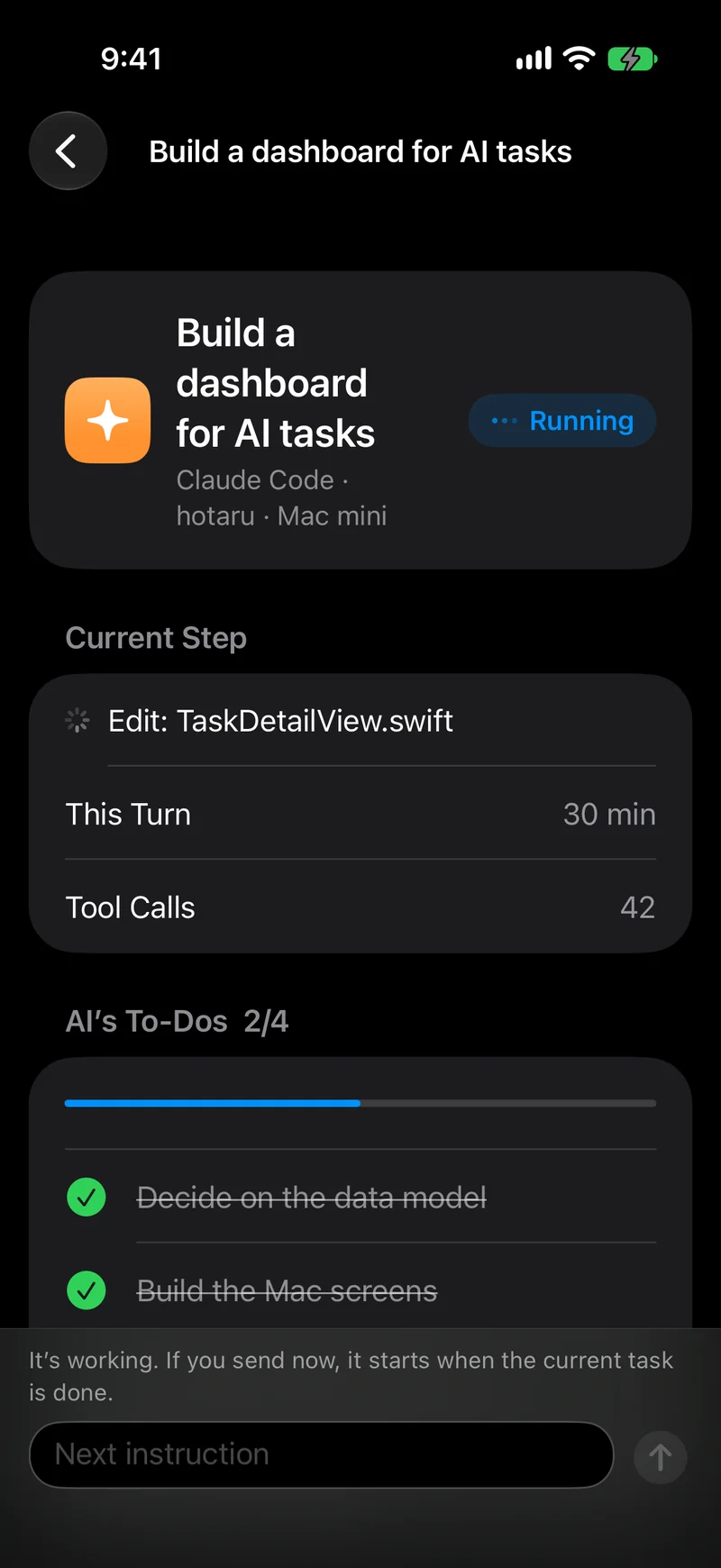
Hotaru shows the AI tasks running on your Macs, on iPhone, iPad and Mac. Start by installing the free Mac app on each Mac that runs your AI tools.
Install the Mac appDownload Hotaru.zip (free, macOS 14 or later), move Hotaru to Applications and open it (see “Install the Mac app” below). ✦ appears in the menu bar.
Use your AI tools as usualRun Claude Code, Codex, Ollama and others, and they appear in the list. Nothing to set up in your AI tools.
Connect iPhone and iPadScan the QR code shown on your Mac with your iPhone or iPad (see “Connect to your Mac” below).
View away from homeChoose the “Hotaru” folder in iCloud Drive once to follow along on any network.
You can look around with sample data before connecting a Mac: tap “No Mac? See a Sample” on the first screen. The sample ends when a real Mac is found.
Install the Mac app
The Mac app is free. Download Hotaru.zip and install it (macOS 14 or later).
Open “Hotaru.zip”Double-click the downloaded “Hotaru.zip”. “Hotaru” appears next to it.
Move it to ApplicationsMove “Hotaru” to your Applications folder.
Open itOpen Hotaru. If macOS says it’s an app downloaded from the internet, click “Open” (first time only). ✦ appears in the menu bar.
The Mac app is signed with Developer ID and notarized by Apple.
When a new version is out, Update appears in the ✦ menu bar menu and in Settings › General. Click it and Hotaru downloads the new version, checks its checksum and signature, swaps it in and reopens. Choose Daily (default), Weekly or Never under Settings › General › “Check for updates automatically” (when Hotaru is in your Applications folder).
Connect to your Mac
Only your first iPhone or iPad needs to scan the QR code on your Mac.
Show the QR codeOpen ✦ in the Mac menu bar and click the QR button at the bottom right (Connect iPhone & iPad).
Scan itUse “Scan QR Code” on Hotaru’s first screen, or the Camera app.
More devices connect on their ownThe pairing key arrives through iCloud Keychain, so other iPhones and iPads with the same Apple ID connect automatically.
Macs don’t need pairing. With the same Apple ID, they line up through iCloud Drive.
On the same Wi-Fi, status comes straight from your Mac, every 2 seconds by default. The connection is encrypted with the pairing key, and devices without it can’t connect.
Can’t scan? Use “Choose an iCloud Drive Folder Instead” on the first screen to follow along through iCloud Drive.
View away from home
On cellular or another Wi-Fi network, updates arrive through your own iCloud Drive, usually tens of seconds behind, sometimes a few minutes — and you can send instructions too.
Check sharing on the MacIn Hotaru Settings › “Devices” on the Mac, make sure “Share This Mac’s Status via iCloud Drive” is on (on by default).
Choose the folderOn iPhone or iPad, go to Hotaru Settings › “View Away from Home” › “Choose Folder”.
Pick the “Hotaru” folder itselfChoose the “Hotaru” folder itself in iCloud Drive, not a folder inside it such as devices or inbox. You only do this once.
You need iCloud Drive on the same Apple ID as your Mac. Your work stays where it is.
Wi-Fi networks that block traffic between devices, such as at universities and offices, prevent direct connections; this is how you follow along there.
Instructions and new tasks
Ask the AI on your Mac. From anywhere.
Send instructions
Read the last reply and continue the conversation. The work is done by the Claude Code or Codex installed on that Mac. Gemini CLI can receive instructions only when that’s turned on on the receiving Mac (Can I send instructions to Gemini CLI?).
Before you start
On the receiving Mac, turn on Hotaru Settings › “Instructions” › “Accept Instructions from Other Devices” (off by default). Tasks on the Mac itself accept instructions even when it’s off.
In the same place, choose how far the AI may go: Auto Mode (only actions judged safe; the default), Edit Files Only (decline commands) or Read Only (decline changes and commands). The notes in parentheses describe Claude Code. Codex runs without write access under Read Only, and under the other two it can write files and run commands inside the working folder. Gemini CLI declines changes and commands under Read Only, and under the other two may edit files only inside the working folder (commands are declined).
Sending from iPhone or iPad requires Hotaru Pro. Sending from another Mac, or on the Mac itself, is free.
Open a taskOpen a Claude Code or Codex task (or a Gemini CLI task, if turned on).
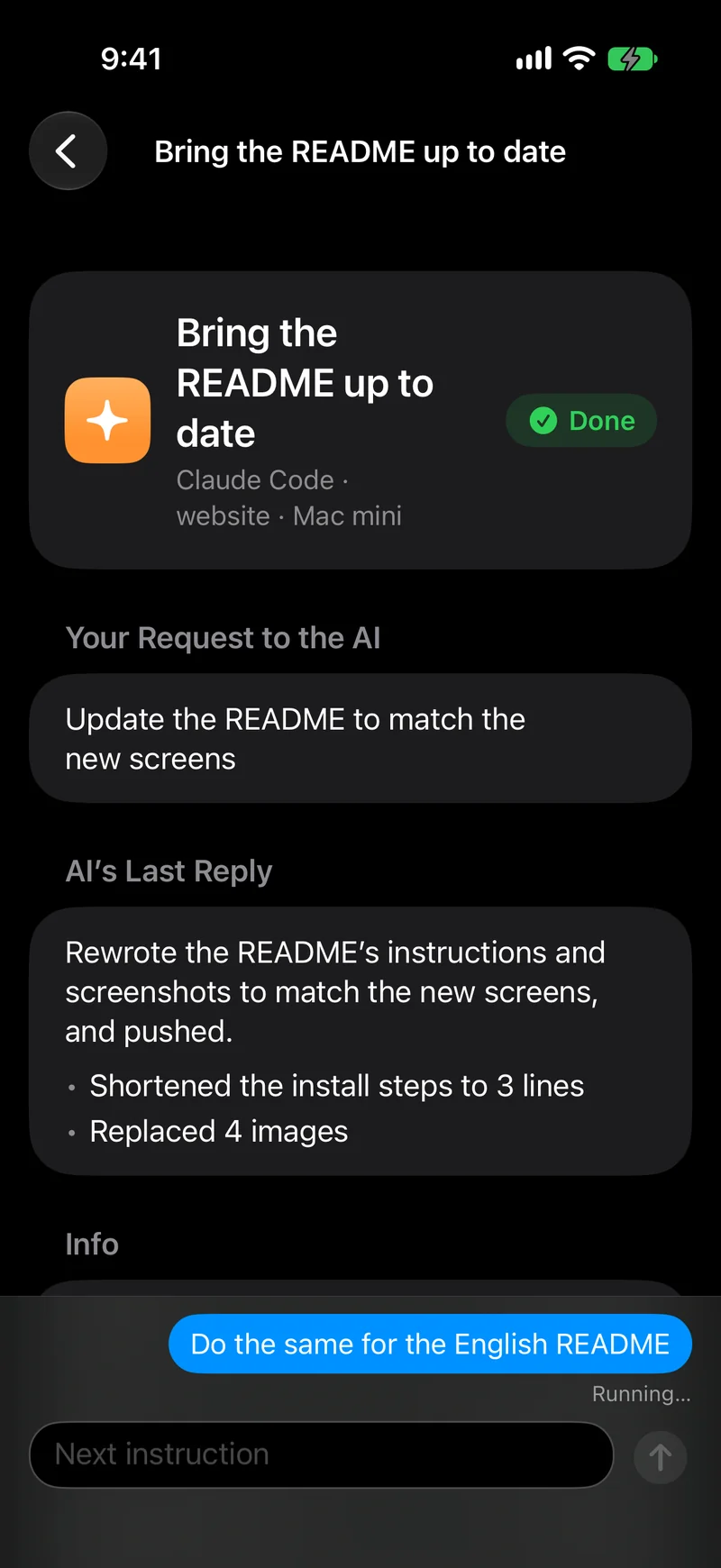
Write the next instructionType in the “Next instruction” field at the bottom. What will happen when you send appears just above it.
SendTap the send button (↑), or press ⌘↩ on Mac. The first time, you’ll see what’s sent where before anything goes.
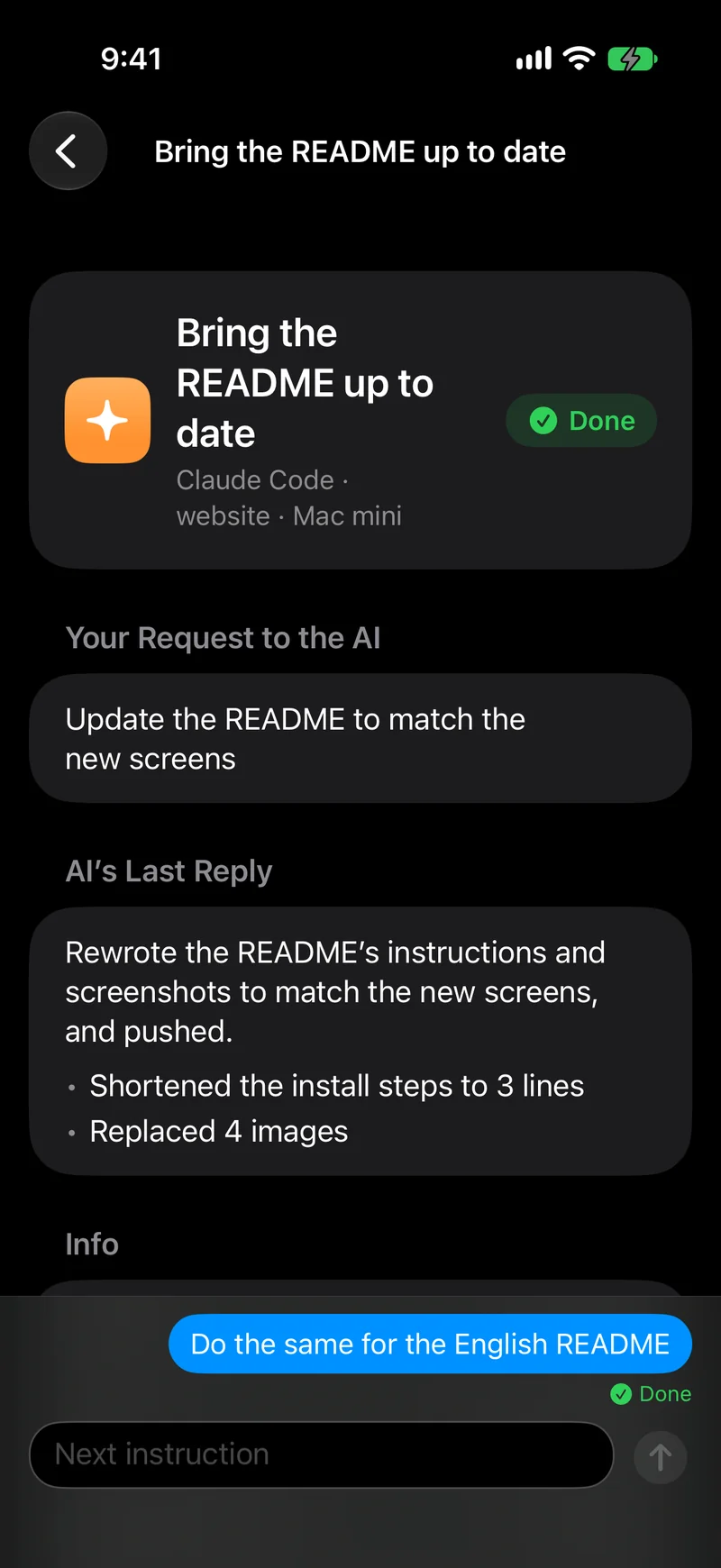
Follow its statusThe status appears above the field, from “Sending…” to “Done” (see “Instruction status” below).
If Claude Code or Gemini CLI is working, the instruction is queued and starts when the AI’s current work ends (up to 1 hour). For Codex in a terminal, send after it finishes; conversations in the ChatGPT app or Codex app accept instructions even while working.
Conversations still open in VS Code, a terminal and similar apps continue as a separate conversation so they don’t get corrupted. The original stays as it is.
Instructions are text only. Instructions run by Hotaru decline actions that need confirmation instead of waiting. Permission prompts and questions from Claude Code running in a terminal, VS Code and similar apps can be answered remotely once you turn this on (see “Answer Claude Code prompts” below). You can’t stop an AI’s work.
The receiving Mac shows a notification every time an instruction arrives.
Instruction status
Where your instruction is right now appears in the field below the task.
Status
What it means
What you can do
Sending…
On its way to your Mac: directly on the same Wi-Fi, otherwise through iCloud Drive.
Delivered
Your Mac received it.
Queued
Starts when the AI’s current work is done. Gives up after 1 hour.
Cancel
Running…
The AI on your Mac is working on it. Questions to a model show “Thinking…”.
Done
Finished. The last reply appears in that task.
Not Delivered
It didn’t reach the Mac within 15 minutes: the Mac was asleep, Hotaru wasn’t running, or iCloud Drive was slow to sync.
Resend
Running…
Done
You may also see “Couldn’t Send” (not connected to the Mac, not on the same Wi-Fi, or couldn’t write to iCloud Drive), “Couldn’t Run” or “Stopped Partway” (the reason appears underneath), “Status Unknown” (for example, Hotaru on the Mac quit; check the conversation in the list) and “Canceled”.
“Resend” sends an undelivered or failed instruction again. If an earlier attempt arrived and is running or already done, it won’t run twice.
Answer Claude Code prompts
When Claude Code stops for a permission or a question, what it wants to do (the command, file or choices) also appears on your iPhone, iPad or another Mac, where you can answer it. The prompt stays on the Mac too, and whichever answer comes first is used.
Before you start
On the receiving Mac, turn on Hotaru Settings › “Instructions” › “Accept Instructions from Other Devices” and “Answer Claude Code prompts from other devices” (both off by default).
Turning it on adds Hotaru’s hook to Claude Code’s settings (~/.claude/settings.json). The previous file is kept as settings.json.hotaru-backup, and turning it off removes only Hotaru’s entry.
Prompts aren’t shown on other devices while Settings › “General” › “Show and Share Task Names, Requests, and Replies” is off.
Answering from iPhone or iPad requires Hotaru Pro. Answering from another Mac is free.
A prompt appearsWhen Claude Code stops for a permission or a question, the prompt appears on that task. By default, only while you’re away from that Mac (no input for 1 minute, or the screen is locked). To change this, choose “Always” under Settings › “Instructions” › “Show on other devices”.
Check what it wantsYou see the command or file to allow, the plan, or the questions and choices, plus the working folder.
AnswerFor a permission, Allow or Deny (some prompts also offer “Allow and Don’t Ask Again”). For a plan, Approve or Reject. For a question, pick an option or write in “Other (type your own)”. Before your first answer, Hotaru asks for your OK.
The Mac carries onYour answer goes to Claude Code on the Mac and the work continues. If it was already answered on the Mac, you see “Answered on the Mac”.
Only Claude Code that shows its prompt on the Mac’s screen (in a terminal, VS Code and similar apps) appears here. Codex and Gemini CLI approvals can’t be answered. Instructions run by Hotaru still decline actions that need confirmation instead of waiting.
Hotaru never allows anything on its own. A prompt waits up to 30 minutes.
If a command or other item is too long to show in full, you can only Deny it remotely; allow it on the Mac after reading it in full.
With Hotaru Pro notifications and “When AI is waiting for you” turned on, you’re also notified of new prompts. Short permission prompts can be answered with Allow or Deny right from the notification (Allow requires unlocking your device).
If Hotaru isn’t running on the Mac, Claude Code asks on the Mac’s screen as usual.
Start a new task
Choose a Mac, an AI and a folder, and give new work to Claude Code or Codex (or Gemini CLI, if the receiving Mac has turned it on).
Tap +Tap + (New Task) in the task list. On iPhone, it’s also at the top right of the first screen. On Mac, you can also choose File › “New Task…” (⌘N).
Choose a Mac, AI and folderPick the Mac, the AI (Claude Code, Codex, or Gemini CLI if turned on) and the folder to work in. Folders are the ones recently used on that Mac; when the task is for the Mac you’re using, “Choose Folder…” lets you pick any folder.
Describe the task and sendTap “Send” (⌘↩ on Mac). The AI on that Mac starts a new conversation in that folder.
The task opens when it startsWhen the new task shows up in the list, it opens. Closing the sheet doesn’t stop the work on the Mac.
Requires Hotaru Pro on iPhone and iPad. Free on Mac.
You can choose Macs that accept instructions from other devices and have Claude Code or Codex (the Mac you’re using works even with accepting turned off). Macs you can’t choose have accepting turned off, or an older version of Hotaru. Gemini CLI can be chosen only when that Mac (2.0.6 or later) has “Also Allow Instructions to Gemini CLI Conversations” turned on.
Actions that need confirmation are declined without waiting.
Ask a local model
Ask an idle Ollama or LM Studio model a question. The model on that Mac makes the answer, and nothing is sent to an outside AI service (the answer comes back to the device that asked, directly on Wi-Fi or through your iCloud Drive).
Open the model’s taskUnder “Idle Models”, open an Ollama or LM Studio task.
Choose a modelIf several models are loaded, choose one above the field.
AskType in the “Question” field and send. While the answer is being made, you’ll see “Thinking…”.
Read the answerYour question appears in the task’s “Your Request” and the model’s answer in “Last Reply”. The exchange is also listed under “Recent Activity”.
Requires Hotaru Pro on iPhone and iPad. To ask a model on another Mac, turn on “Accept Instructions from Other Devices” on that Mac and keep its Hotaru up to date.
Your last 3 exchanges with that model are included with the question.
Before you send
The first time you send an instruction or question, “Before You Send” shows where your words go and who processes them, and asks for your OK.
It goes to your MacDirectly on the same Wi-Fi, otherwise through your iCloud Drive. It never passes through servers run by Hotaru’s developer.
Claude Code is processed by AnthropicClaude Code on your Mac sends it to Anthropic’s service using your account.
Codex is processed by OpenAICodex on your Mac sends it to OpenAI’s service using your account.
Local models stay on your MacQuestions to Ollama and LM Studio are processed only on that Mac.
Tap “Agree and Send” to send, or “Cancel” to send nothing. What you send is handled under each service’s terms and privacy policy.
Review it anytime in Settings under “Where Instructions and Questions Go” on iPhone and iPad, or in the Privacy tab of Settings on Mac. If you tap “Withdraw Consent”, you’ll be asked again the next time you send.
Hotaru for Mac works as an MCP server. Once connected, your AI apps can list Hotaru’s tasks, send instructions, start new tasks and report their own progress to Hotaru.
Open SettingsOn the Mac, open Hotaru Settings › “AI Apps”.
Click “Connect”Under “Connect AI Apps”, the apps found on that Mac are listed. Click “Connect” next to the one you want.
Finish in the appSome apps ask you to confirm with Install, or to reopen them (see the table).
Try itFor example: “Use Hotaru to tell me which AIs are working right now”.
App
After you click “Connect”
Claude app
Hotaru is added as a Claude extension. Claude asks you to confirm: click Install. To remove it, go to Claude › Settings › Extensions.
Claude Code
Available in newly started Claude Code sessions.
Codex & ChatGPT app
Reopen Codex and the ChatGPT app to use it.
Gemini CLI
Restart Gemini CLI to use it.
Cursor
If Cursor asks you to confirm, click Install. Otherwise, reopen Cursor to use it.
VS Code
Use it in VS Code’s chat.
Other apps (such as Zed)
Click “Copy Configuration” and paste the MCP configuration (JSON) into the app.
Instructions from AI apps
“Accept instructions from AI apps” is off by default. When it’s on, connected AI apps can send instructions to Claude Code or Codex (and Gemini CLI, if turned on) on your Macs and start new tasks — the AI app asks you each time. Viewing tasks and showing progress in Hotaru work even when it’s off. Sending to another Mac also follows that Mac’s “Accept Instructions from Other Devices”.
Before you connect
A connected AI app can read Hotaru’s task list and contents and may send them to its company. You decide whether to connect it. Privacy Policy
Only Hotaru’s entry is added; other settings are left untouched. The previous file is kept as “….hotaru-backup”. “Disconnect” removes Hotaru’s entry.
For the Claude app, you can also use “Write to the Configuration File Instead…”. Afterwards, quit and reopen Claude.
MCP is a feature of the Mac app.
Widgets and notifications
Glance. Get notified.
Widgets
Put Hotaru widgets on your Home Screen, Lock Screen and Mac desktop.
iPhone and iPad
Touch and hold the Home Screen.
Tap “Edit” › “Add Widget”.
Choose “Hotaru”. You can add them to the Lock Screen too.
Mac
Right-click the desktop.
Choose “Edit Widgets…”.
Choose “Hotaru”.
Widgets on iPhone and iPad require Hotaru Pro. Widgets on the Mac are free.
iOS and macOS decide how often widgets refresh. On iPhone and iPad, opening the app updates them right away.
Notifications
Get notified when an AI finishes, or stops to wait for permission or an answer. Tap the notification to open the task.
iPhone and iPad
Buy Hotaru Pro in Settings › “Purchases”.
Allow notifications in iPhone Settings › Notifications › Hotaru.
In Hotaru Settings › “Notifications”, turn on “When AI finishes a task” and “When AI is waiting for you”.
Mac (free)
In Settings › “General”, “Notify When the AI Finishes or Is Waiting” and “Also Notify for Other Macs” are on by default. You won’t be notified while the app running that task (VS Code, Terminal and so on) is in front. You’re always notified when an instruction arrives from another device. Turn on “Also Alert via iCloud Reminders” in Settings › “General”, and when an AI on this Mac finishes or waits for you, Hotaru adds an alert to a “Hotaru” list in iCloud Reminders, which rings on your iPhone and iPad (off by default; no plan needed).
Purchases
Start free. Pay once if you need more.
Buy and restore
The list of AI tasks and their progress are free. Hotaru Plus and Hotaru Pro are one-time purchases (no free trial). The Mac app is free and includes everything.
Purchase
Price
What you get
Hotaru Free
¥0 Free to start
AI task list, AI work status, Mac status, the AI’s recent steps and basic connection features
Hotaru Plus
¥500 One-timepurchase
Everything in Free, the AI’s replies (Last Reply, list summary) and custom app icons (Firefly Day and Night)
Hotaru Pro
¥1,500 One-timepurchase Recommended
Everything in Plus, instructions from iPhone and iPad to your Mac (next instructions, new tasks, questions to models, answers to Claude Code prompts), widgets on iPhone and iPad, alerts when an AI finishes or waits for permission, and future Pro-only features
Open SettingsIn Hotaru on iPhone or iPad, open Settings › “Purchases”.
Choose a planChoose Hotaru Plus or Hotaru Pro and buy it. Pro includes everything in Plus. If you already have Plus, Pro is still ¥1,500.
Restore on other devicesOn another iPhone or iPad with the same Apple ID, or after reinstalling, tap “Restore Purchases”.
One-time purchases: buy once and keep using them.
Purchases work on every iPhone and iPad with the same Apple ID.
Prices are for the App Store in Japan and may differ in other countries. The iPhone and iPad app is on its way to the App Store.
App icon
In Hotaru Settings › “App Icon” on iPhone or iPad, choose the Home Screen icon: “Default”, “Firefly Day” or “Firefly Night”.
The two firefly icons are available with Hotaru Plus or Hotaru Pro.
On iOS 26 and later, the icon also adapts to the glass look and to dark, tinted and clear icon styles.
DefaultFirefly DayFirefly Night
Troubleshooting
Frequently asked questions
Connecting and viewing
It doesn’t connect even on the same Wi-Fi
University and office networks often block traffic between devices. Choose the “Hotaru” folder in iCloud Drive under Settings › “View Away from Home” to get updates through iCloud Drive, usually tens of seconds behind, sometimes a few minutes.
My Mac shows as “Offline”
A Mac is shown offline when nothing new arrives for 3 minutes: it is asleep, Hotaru for Mac has quit, or iCloud Drive is off. Its tasks stay in the list for up to 30 minutes, labeled with how old the data is (“Data from … ago”).
Some AI tools don’t appear
Hotaru shows Claude Code, Codex, Gemini CLI, Ollama, LM Studio, llama.cpp and similar servers, and machine-learning Python. Chats in apps or browsers, cloud-hosted AI and tools Hotaru doesn’t know (such as Antigravity) don’t appear. Codex’s “waiting for approval” isn’t shown either. Gemini CLI conversation details (title, request, reply, recent steps) appear from Mac app 2.0.6.
I can’t see the replies
Reading the AI’s replies on iPhone and iPad (Last Reply, list summary, notification text) requires Hotaru Plus or Hotaru Pro. If “Show and Share Task Names, Requests, and Replies” is off on the Mac, the AI’s task names, what you asked it and its replies aren’t shown; only the kind, state, tool names and details such as the working folder are shown.
Instructions and new tasks
An instruction says “Not Delivered”
The Mac was asleep for more than 15 minutes, or Hotaru wasn’t running. Old instructions are never run, so nothing starts unexpectedly later. Wake the Mac and tap “Resend”.
An instruction failed to run
For example, accepting instructions is off on the Mac, claude, codex or gemini wasn’t found, or the conversation’s log isn’t on that Mac. The reason appears under the status.
What happens if I send while the AI is working?
For Claude Code and Gemini CLI it is queued and starts when the AI’s current work ends (up to 1 hour). For Codex in a terminal, send after it finishes. Conversations still open in VS Code and similar apps continue as a separate conversation so they don’t get corrupted.
Can I grant a permission from my iPhone?
For Claude Code, yes (see “Answer Claude Code prompts”). On the receiving Mac, turn on “Accept Instructions from Other Devices” and “Answer Claude Code prompts from other devices” in Settings › “Instructions”. On iPhone and iPad this requires Hotaru Pro. By default, prompts appear only while you’re away from that Mac (no input for 1 minute, or the screen is locked). The prompt stays on the Mac too, and whichever answer comes first is used. Instructions run by Hotaru still decline actions that need confirmation.
Can I send instructions to Gemini CLI?
Only when Hotaru on the receiving Mac is 2.0.6 or later and Settings › Instructions › “Also Allow Instructions to Gemini CLI Conversations” is turned on (off by default; it’s needed even when sending from that Mac itself). It’s meant for people who use Gemini CLI with a paid Gemini API key, Vertex AI or Gemini Code Assist Standard/Enterprise (since June 2026, “Login with Google” on the free tier or Google AI Pro/Ultra no longer works in Gemini CLI). Once it’s on, you can send the next instruction to a conversation and start new Gemini CLI tasks. Hotaru doesn’t touch your credentials: it runs the official gemini command on that Mac with your own setup. “Auto Mode” and “Edit Files Only” map to Gemini CLI’s auto_edit (edits inside the working folder only; commands are declined), and “Read Only” to default (changes and commands are declined). YOLO mode is never used. Sending from iPhone or iPad needs Hotaru Pro and Hotaru 2.0.6 or later on the iPhone or iPad. When sending from another Mac, that Mac needs 2.0.6 or later too. You can’t answer Gemini CLI’s permission prompts or questions from other devices (only Claude Code’s).
Can I stop an AI’s work?
No. Only instructions that are still queued can be canceled. Once it’s turned on, you can Deny a Claude Code permission prompt remotely (see “Answer Claude Code prompts” above).
It says “No Macs can take tasks”
You can start tasks on Macs that have “Accept Instructions from Other Devices” turned on in Hotaru Settings › “Instructions” and can use Claude Code or Codex (or Gemini CLI, if turned on). Macs with an older version of Hotaru can’t be chosen either.
I can’t ask a model
Only idle Ollama and LM Studio models can be asked. On iPhone and iPad, this requires Hotaru Pro. To ask a model on another Mac, turn on accepting instructions on that Mac and keep its Hotaru up to date.
Purchases
Using my purchases on another iPhone or iPad
Purchases work on every device with the same Apple ID. Tap Settings › Purchases › “Restore Purchases”.
Should I buy Plus or Pro?
If you only want to read the AI’s replies, Hotaru Plus (¥500). If you also want to send instructions from iPhone and iPad to your Mac, answer Claude Code prompts, use widgets, and get alerts when an AI finishes or waits for permission, Hotaru Pro (¥1,500). Pro includes everything in Plus, and both are one-time purchases. If you already have Plus, Pro is still ¥1,500.
Do I need to buy anything for the Mac app?
No. The Mac app is free and includes everything.
Widgets and notifications
A widget is out of date
iOS decides how often widgets refresh. Opening the app updates them right away. Widgets on iPhone and iPad need Hotaru Pro.
I don’t get notifications
Hotaru’s notifications on iPhone and iPad need Hotaru Pro. Allow them in iPhone Settings › Notifications › Hotaru, and turn on “When AI finishes a task” and “When AI is waiting for you” in the app’s settings. Without a plan, you can also use “Also Alert via iCloud Reminders” in the Mac’s Settings › “General”.
On iPhone and iPad, open Settings › “Where Instructions and Questions Go”; on Mac, open the Privacy tab in Settings. Then tap “Withdraw Consent”. You’ll be asked again the next time you send.
Contact
Still need help?
Contact
For bugs and questions, use the contact form of Auralune Technologies Studio.
It helps to include
Hotaru version (Mac, iPhone, iPad)
macOS, iOS and iPadOS versions
Which AI you use (Claude Code, Codex and so on) and the app it runs in
What happened, and the steps that led to it
Any message shown on screen
Please don’t include
The contents of your AI conversations (what you asked the AI and its replies)