
AI progress across all your devices.
Anytime, anywhere.
AI from every company, on every Mac, in one list. No developer server, no account — and AI apps can use it too, over MCP.
Free on Mac. The iPhone and iPad app is on its way to the App Store.1
Hotaru
This is Hotaru
Ask an AI to do something, then step away.
Is it done, or waiting for your permission? With Hotaru, you can tell at a glance from any iPhone, iPad or Mac.
Every company’s AI, on every Mac,
in one list.Claude Code, Codex and Gemini CLI, and local models in Ollama, LM Studio and more. The AI running on all your Macs, most urgent first. Nothing to set up on the AI side.2
No servers.
No accounts.The developer runs no server and collects no data. The AI’s status and replies (which can include code) come straight from your Mac on the same Wi-Fi, and through your own iCloud when you’re away. A setting on the Mac keeps the text of tasks, requests and replies off your other devices. If rules at your company or lab make outside services hard to use, the privacy policy shows what goes where.
AI apps can use it too
(MCP).Connect the Claude app, Claude Code, Codex, Gemini CLI, Cursor or VS Code to Hotaru on your Mac over MCP, and they can list AI tasks, send instructions, start new tasks and report their own progress to Hotaru.
-
Every company’s AI, on every Mac,
in one list.Claude Code, Codex, and models in Ollama and LM Studio — most urgent first.
![]()
-
No servers.
No accounts.Nothing goes through a developer server, and the developer collects no data.
![]()
-
AI apps can use it too
(MCP).From the Claude app, Claude Code, Codex, Gemini CLI, Cursor and VS Code.
-
Claude Code, Codex
and local models.All from the same app: the next instruction, a new task, or a question for a model.
![]()
-
Know when it’s
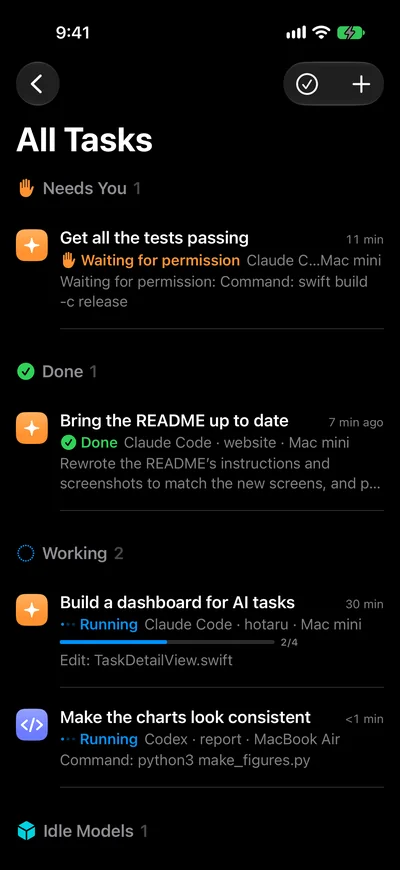
your turn.Tasks that stopped to wait for you come first.
![]()
-
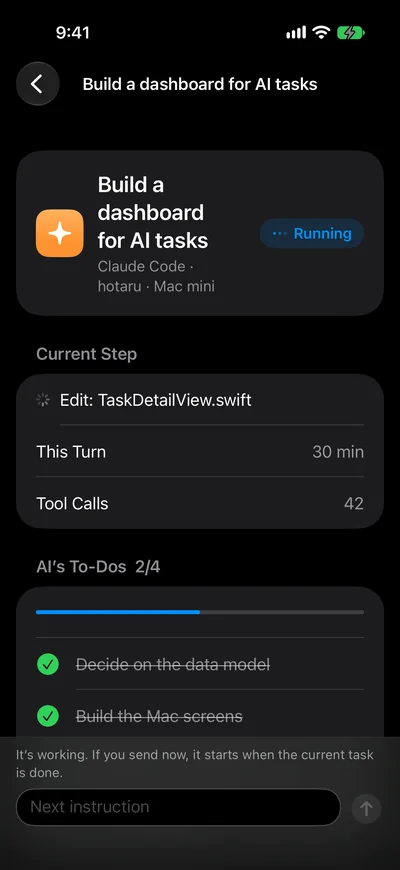
Open a task.
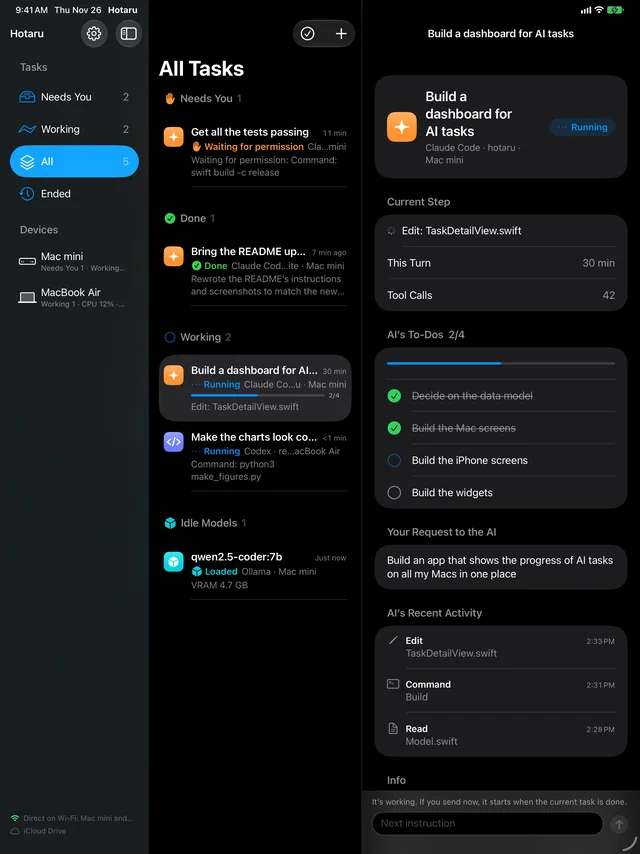
See the AI’s current step.The AI’s current step, its to-dos and recent work.
![]()
-
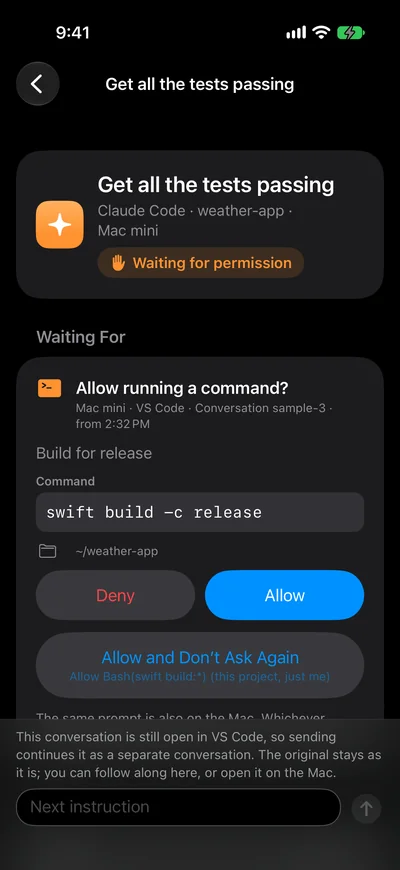
Answer permission prompts
from anywhere.Answer Claude Code’s prompts from iPhone, iPad or another Mac.
![]()
-
On your Home Screen.
And your Lock Screen.At a glance, without opening the app.
![]()
-
Free on Mac.
Everything included.Menu bar, window, widgets and alerts.
![]()
Next instruction
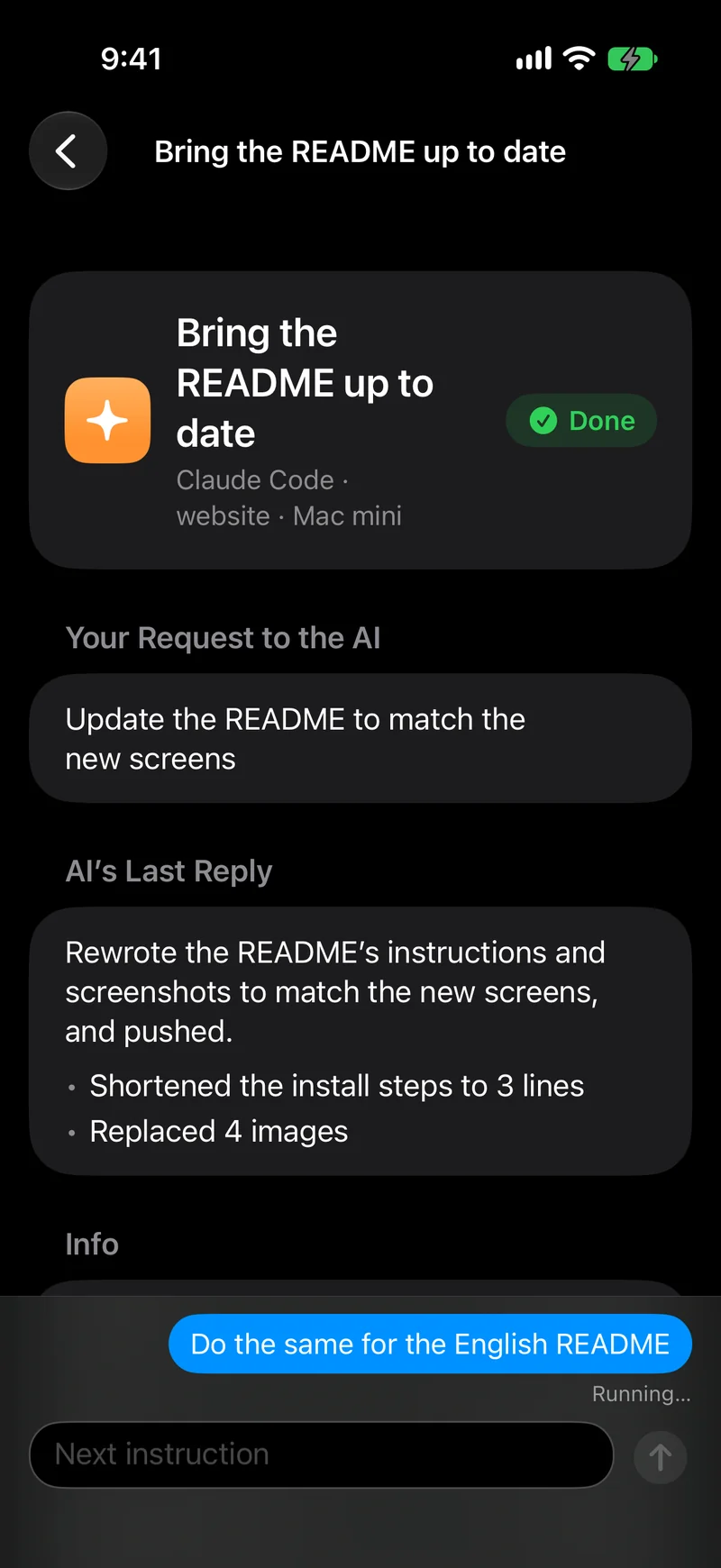
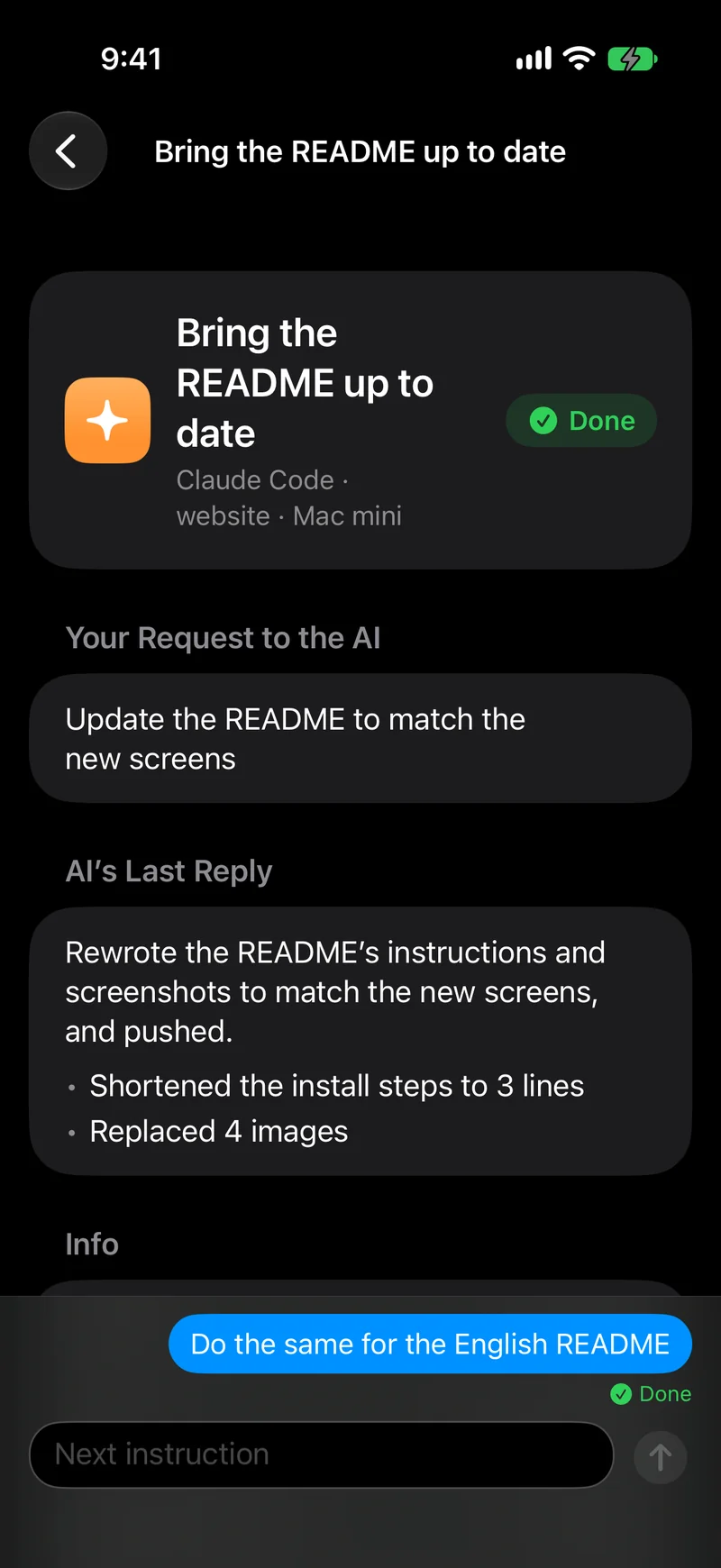
Send the next step
from anywhere.
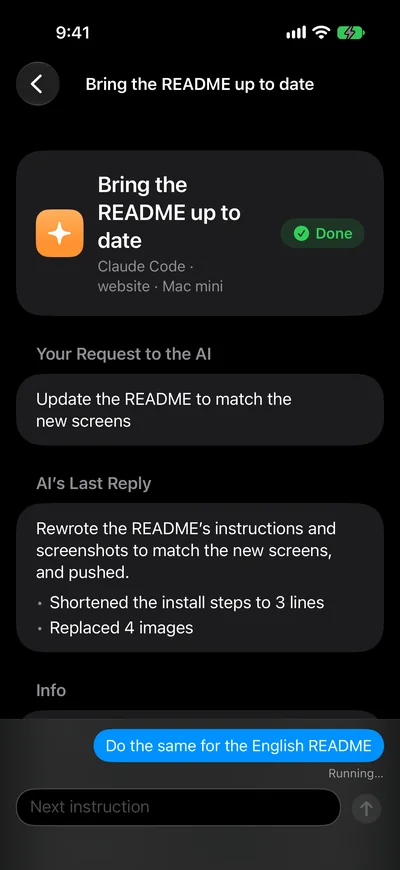
Read the last reply and continue the conversation from iPhone or iPad. The Claude Code or Codex on your own Mac does the work — and Gemini CLI too, if you turn it on.4
- Sending
- Delivered
- Queued · Running
- Done
Your Mac decides how far it goes.
Auto Mode, Edit Files Only or Read Only. Accepting instructions is off until you turn it on, on the Mac.
Busy? It waits its turn.
If Claude Code is working, the instruction waits until it finishes. A conversation still open in an editor or terminal continues as a separate conversation, leaving the original as it is.
Stale instructions never run.
Instructions with a bad signature or older than 15 minutes are never run, so nothing starts unexpectedly later.
Start new AI work.
Choose a Mac and start new work with Claude Code or Codex (or Gemini CLI, if you turn it on).
Ask a local model.
Ask an idle Ollama or LM Studio model a question. The answer is made on that Mac.
See what’s sent, first.
Before your first send, Hotaru shows what goes where.
Drafts stay put.
What you’ve started typing in “Next instruction” or “New Task” stays there when you switch screens or reopen the app (on that device only, for up to 7 days).
Continue finished conversations, too.
You can send the next instruction to a Claude Code or Codex conversation that has ended. If its log is on the Mac, it picks up as a continuation of that conversation. A Claude Code conversation without one starts as a new conversation in the same folder.
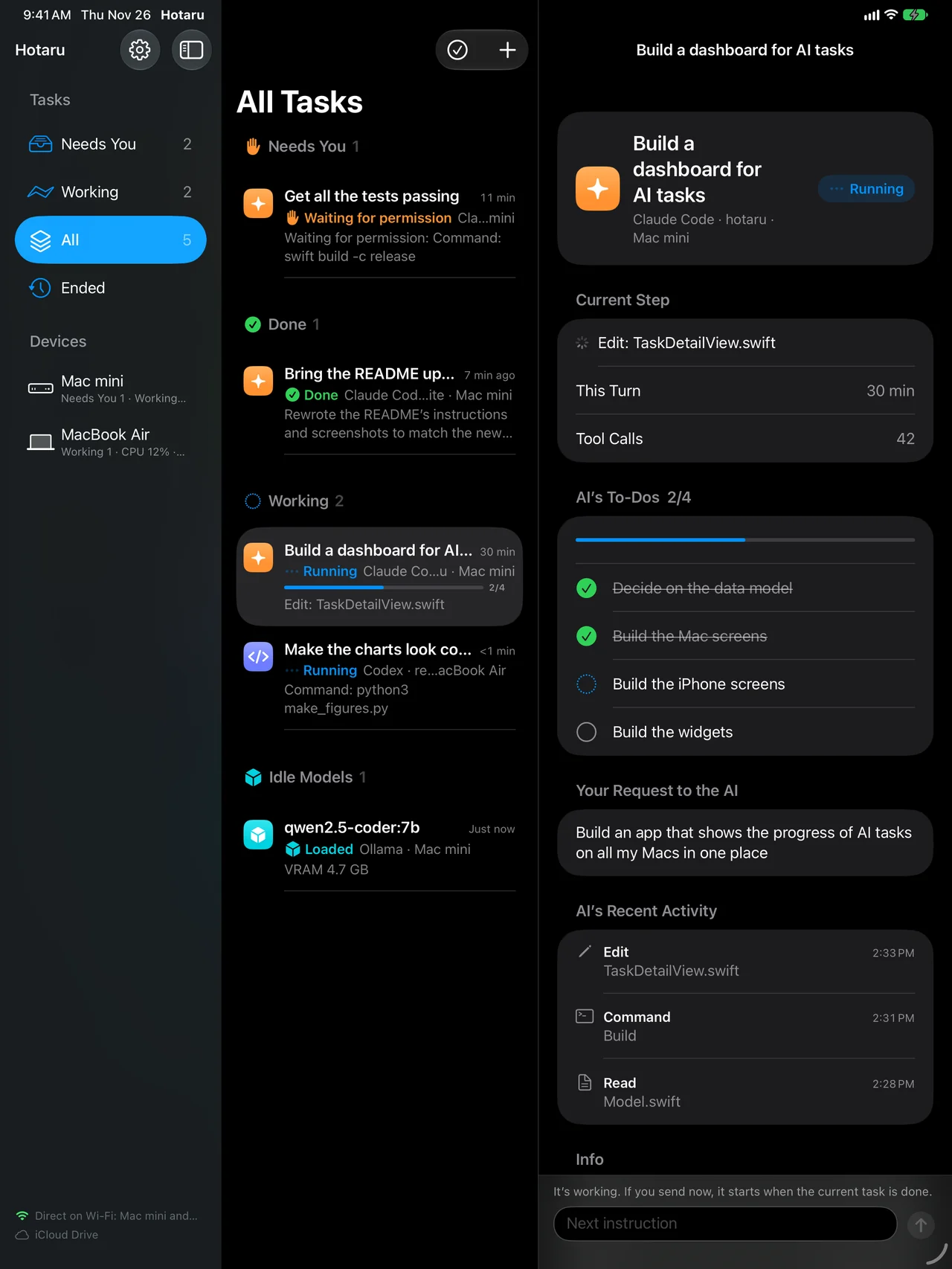
One list
Every AI on every Mac.
One list.
However many Macs you use. Claude Code in VS Code, Cursor, a terminal, the Claude app or OMOCHI AI, Codex in the ChatGPT app, models in Ollama and LM Studio — all in one list, most urgent first. Nothing to set up in your AI tools.2
Works with
- Claude Code
- From VS Code, Cursor, Windsurf, terminals, Zed, Xcode, the Claude app, OMOCHI AI and more
- Codex
- Terminal, codex exec, the ChatGPT app, the Codex app and editor extensions such as VS Code
- Gemini CLI
- From terminals and more. From Mac app 2.0.6, its title, request, reply and recent steps too
- Ollama and LM Studio
- Loaded models, and whether they’re generating
- Local LLMs
- llama.cpp, llamafile, mlx_lm.server and more
- Machine-learning Python
- torch, mlx, transformers, ComfyUI and more
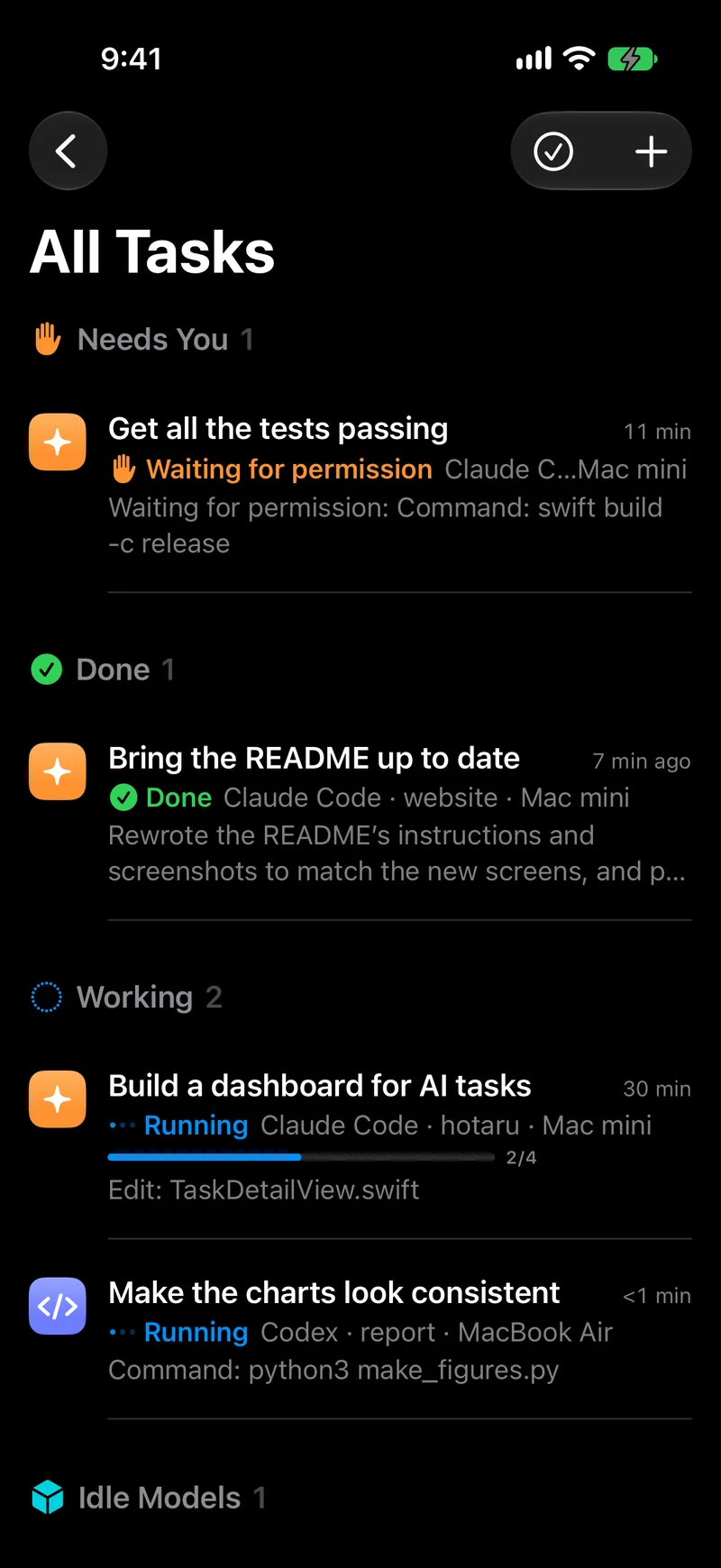
States
Know when it’s
your turn.
Waiting for permission, a question, your input — tasks that stopped to wait for you come first. Finished tasks with a reply come next.
- Needs You
- The AI stopped and is waiting for you
- Done
- The AI finished what you asked and replied
- Working
- Thinking or running tools
- Idle Models
- A model is loaded in Ollama or LM Studio
- Idle and Ended
- Done and already seen, doing nothing, or ended
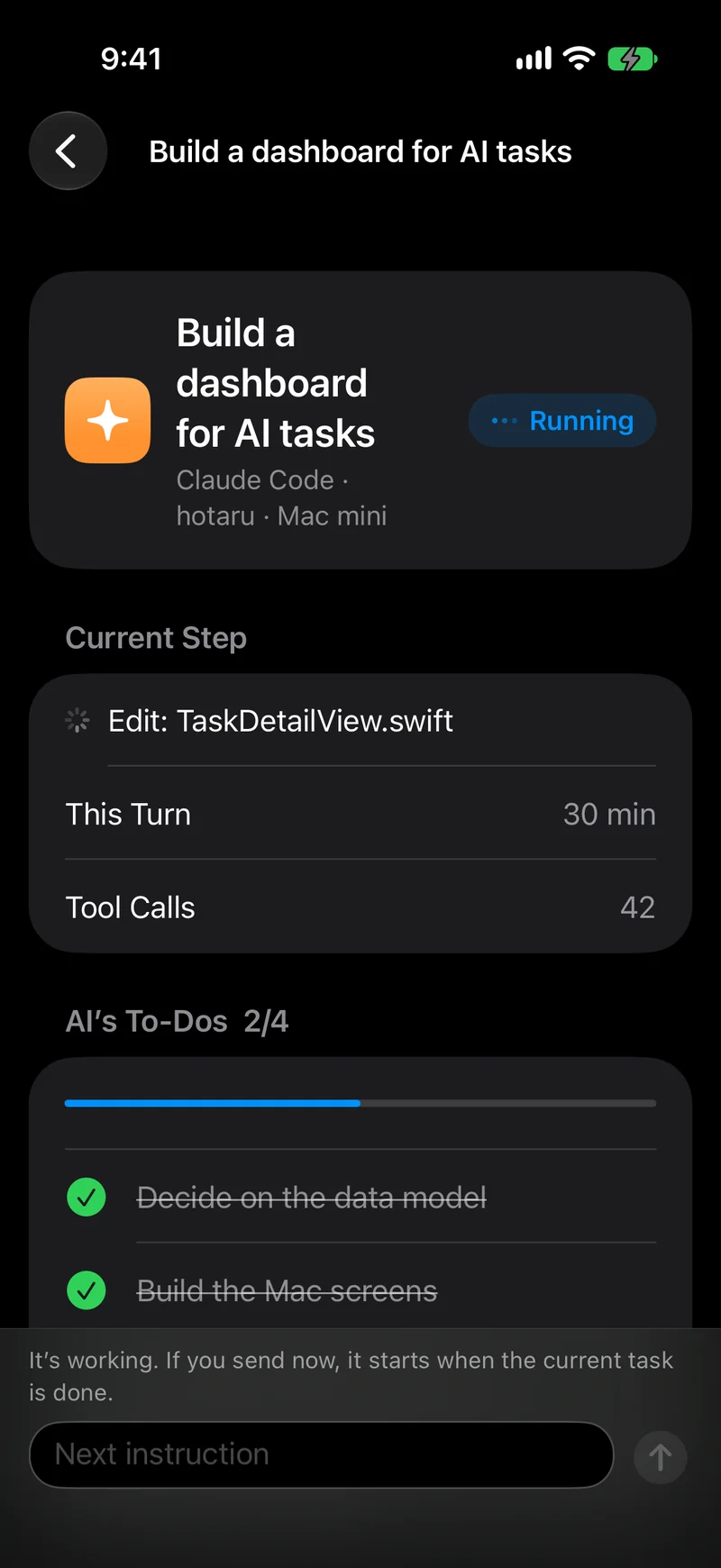
Details
Open a task.
See the AI’s current step.
Know how far the AI got without going back to the terminal.
The AI’s current step. The AI’s own to-dos.
The last tool the AI used, progress on the to-do list the AI made for itself (its plan), and how long this turn has taken and how many tools it has run.
The AI’s last 12 steps.
The commands, reads, edits, searches, web lookups and subagents the AI ran — in order.
The last reply, in your hand.
Read up to 6,000 characters of the AI’s reply, with tables, code, math and diagrams laid out, plus a one-line summary in the list.3
How each Mac is doing.
CPU per core, GPU, memory, disk, temperatures and battery for each Mac.
Uses none of your AI usage.
If you’re just watching, Hotaru only reads the logs your AI tools write. No tokens spent, nothing to configure.
And where it runs.
The app it was started from (VS Code, Terminal and more), its folder, CPU and memory.
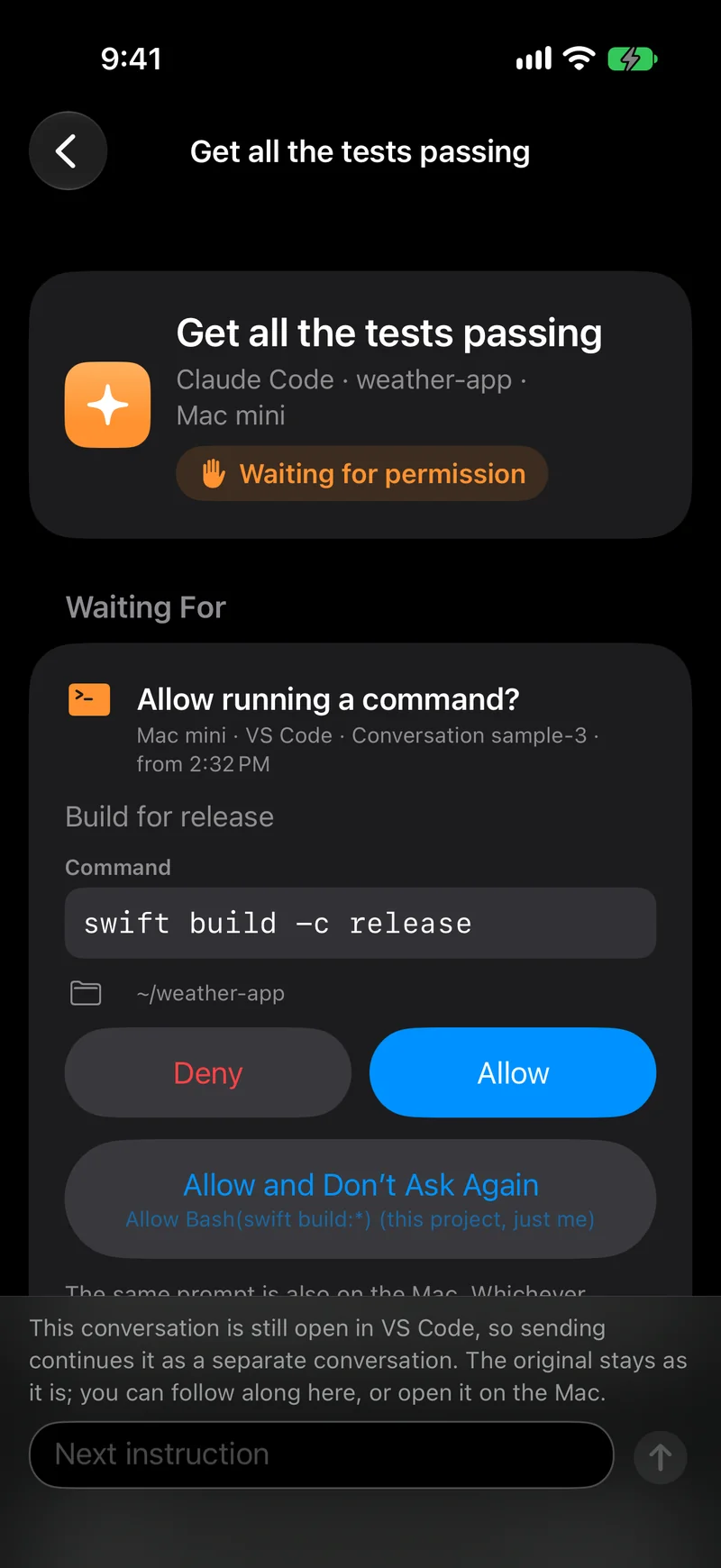
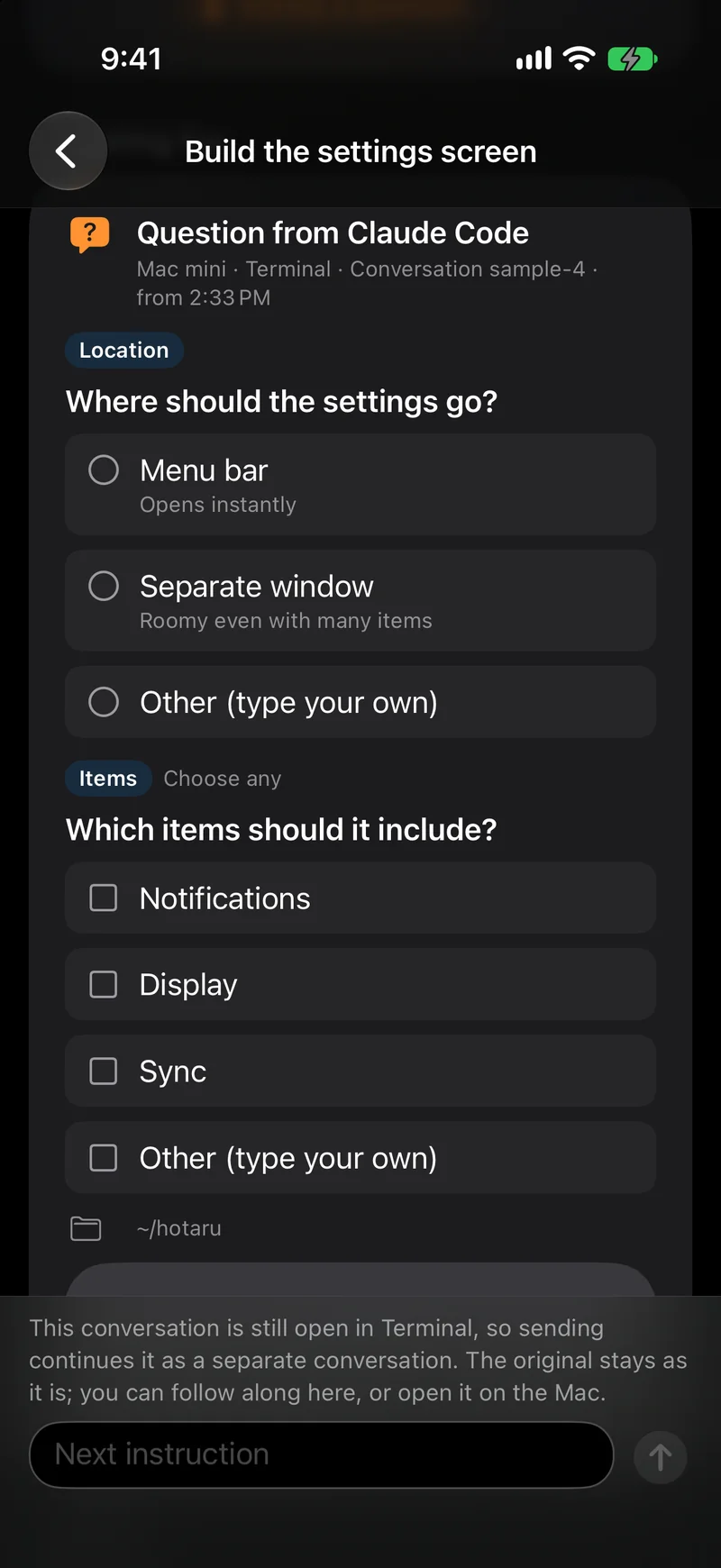
Prompts and questions
Answer permission prompts
from anywhere.
When Claude Code stops for a permission or a question, what it wants to do (the command, file or choices) also appears on your iPhone, iPad or another Mac, where you can Allow, Deny or answer.4
Pick an answer.
Allow or Deny a permission, Approve or Reject a plan, and pick an option for a question — or type your own.
The first answer wins.
The prompt stays on the Mac too. Answer it there, and it disappears from your other devices.
Turn it on on the receiving Mac.
In Settings › Instructions on the Mac, turn on “Answer Claude Code prompts from other devices” (off by default). By default, prompts appear only while you’re away from that Mac. Hotaru never allows anything on its own.
Claude Code only.
You can answer Claude Code’s prompts and questions. Answering from iPhone or iPad requires Hotaru Pro; from another Mac it’s free.
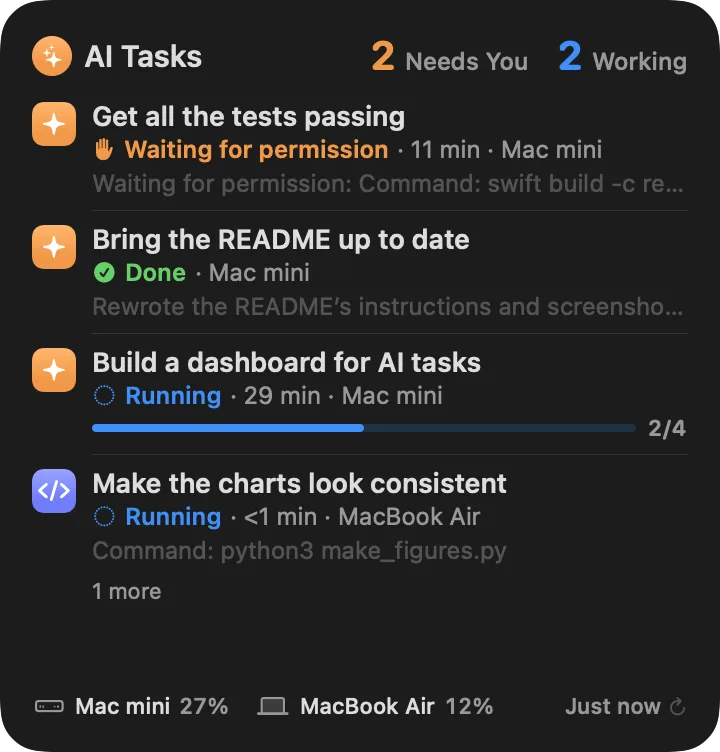
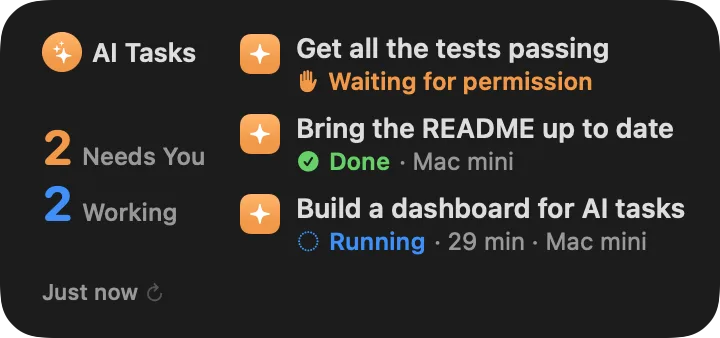
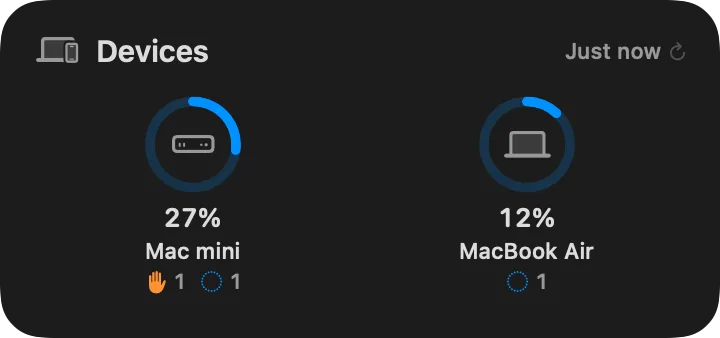



Widgets and alerts
On your Home Screen.
And your Lock Screen.
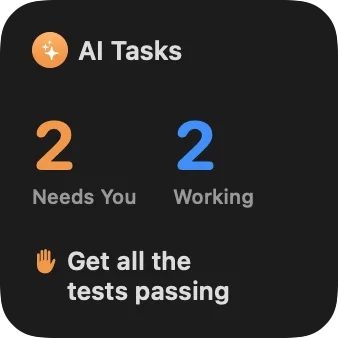
What needs you, what’s working, the most urgent AI tasks and each Mac’s CPU, GPU, memory, free space, temperature and battery — at a glance, without opening the app.5
Get notified when it’s done.
When an AI finishes, or stops to wait for permission or an answer. Tap to open the task.5
On your Mac desktop, too.
AI Tasks, Devices and This Mac. Widgets on the Mac are free.
Connection and privacy
No servers.
No accounts.
Task status travels only between your devices and through your own iCloud. The developer collects no data.
Direct on the same Wi-Fi.
Connects straight to your Mac, with fresh status every 2 seconds by default. Only devices with your pairing key can connect, over an encrypted link.6
iCloud Drive when you’re out.
Even on cellular, updates arrive through your own iCloud Drive, tens of seconds behind.
Pair once with a QR code.
Scan the QR code from your Mac’s menu bar. More iPhones and iPads with the same Apple ID connect on their own.
Data Not Collected.
No account and no sign-in. There’s no developer server.
Share less, if you like.
Turn off “Show and Share Task Names, Requests, and Replies” on the Mac, and the AI’s task names, what you asked the AI, its replies and its to-dos stay on the Mac. Only kinds, states, tool names and details such as the working folder and the app it runs in are shared.

Mac
Free on Mac.
Everything included.
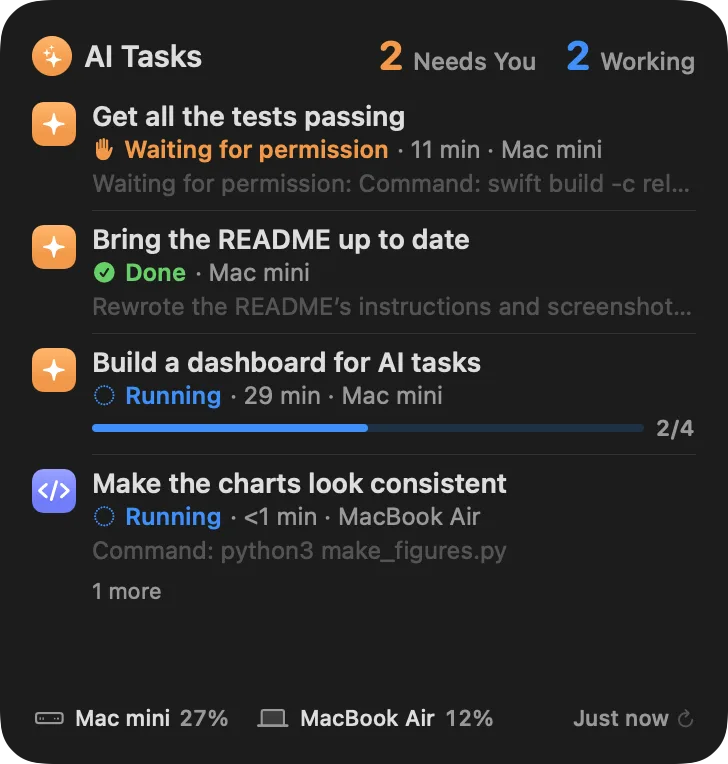
Needs You and Working counts live in the menu bar. Open it for AI tasks by urgency and each Mac’s CPU, temperature and free space. Or use the same three-column window as on iPad.
Free. Requires macOS 14 or later. Notarized by Apple.
Jump back into the conversation.
“Open Conversation in VS Code”, “Open Conversation in Terminal” and “Copy Resume Command”.
On your desktop, too.
AI Tasks, Devices and This Mac widgets, plus a live view of CPU, GPU and temperatures.
Free instructions between Macs.
Sending instructions from another Mac, or on the Mac itself, is free.
Back at your Mac, pick up in VS Code.
When a Claude Code conversation you continued or started from another device finishes while you’re away, Hotaru opens it in VS Code when you come back (in Terminal if VS Code can’t open it; you can turn this off).
A log of every instruction, on the Mac.
For each instruction that arrives from an iPhone, iPad, another Mac or an AI app, the Mac keeps who sent it, which AI, what was asked, how it went and the AI’s last reply — on that Mac only, for 90 days. Open it from ✦ or the Window menu.
Updates in one click.
When a new version is out, Update appears in the ✦ menu and in Settings › General. Click it and Hotaru downloads it, checks its checksum and signature, swaps it in and reopens.
Or get a Reminders alert.
Turn it on in the Mac’s settings (free): when an AI on that Mac finishes or waits for you, Hotaru adds an alert to a “Hotaru” list in iCloud Reminders, which rings on your iPhone and iPad. It’s removed automatically shortly after.
From your AI apps to Hotaru.
With MCP, the Claude app, Claude Code, Codex (ChatGPT), Gemini CLI, Cursor and VS Code can list the AI tasks Hotaru sees, send instructions to your AI, start new AI work and report their own progress to Hotaru.
How to connect →
Features
Hotaru in under a minute.About 55 seconds · No sound
One list
Every AI on every Mac.
One list.
Claude Code, Codex, Ollama and more — most urgent first.
Details
Open a task.
See the AI’s current step.
The AI’s current step, its to-dos and recent work.
Needs You
Answer permissions
and questions.
Claude Code’s prompts, from iPhone and iPad.
Next instruction
Send the next step
from anywhere.
The AI on your own Mac does the work.
New task
Start new AI work.
Choose a Mac, then Claude Code or Codex.
Widgets
On your Home Screen.
And your Lock Screen.
Needs You and Working counts, at a glance.
Mac
How each Mac is doing.
CPU, GPU, memory, temperature and battery.
Pricing
Start free.
Pay once if you need more.
Start for free, and add Plus or Pro when you need them. Both are one-time purchases. The Mac app is free and includes everything.7
-
Hotaru Free
¥0
Free to start
- List of AI tasks
- What each AI is doing
- The state of your Macs
- Recent AI activity
- Basic connection
iPhone and iPadComing to the App Store
-
Hotaru Plus
¥500
One-time purchase
- Everything in Free
- Read the AI’s replies
- Custom app icons
![Firefly Day icon]()
![Firefly Night icon]()
iPhone and iPadComing to the App Store
-
Hotaru Pro Recommended
¥1,500
One-time purchase
- Everything in Plus
- Send instructions from iPhone and iPad to your Mac
- Answers to Claude Code prompts
- iPhone and iPad widgets
- Notifications when the AI finishes or needs permission
- Future Pro features
iPhone and iPadComing to the App Store
-
Mac app
¥0
Free, with every feature
- Every feature
- Menu bar, window, widgets, notifications
- Instructions to your other Macs

Plus and Pro are one-time purchases: buy once and keep using them. Pro is a single purchase that includes everything in Plus; if you already have Plus, Pro is still ¥1,500.
※ Prices are for the Japanese App Store.
Technical
Specifications
- Requirements
- Mac: macOS 14 or later
iPhone and iPad: iOS and iPadOS 17 or later - Works with
- Claude Code, Codex, Gemini CLI, Ollama, LM Studio, local LLMs (llama.cpp, llamafile, mlx_lm.server and more) and machine-learning Python (torch, mlx, transformers, ComfyUI and more)
- Connection
- Direct on the same Wi-Fi (encrypted, every 2 seconds by default). Away from home, through your own iCloud Drive, tens of seconds behind
- Servers and accounts
- None. No developer server, no account and no sign-in. Data Not Collected
- Instructions
- Claude Code and Codex conversations (text only). Gemini CLI only when turned on in the receiving Mac’s settings (2.0.6 or later)
- Answering prompts
- Claude Code only (Hotaru Pro on iPhone and iPad; free from another Mac)
- Plans
- Free ¥0, Plus ¥500, Pro ¥1,500 (iPhone and iPad; one-time purchases)
The Mac app is free, with everything - Languages
- Japanese, English, Simplified Chinese
- Latest Mac version
- 2.0.6 · 2026.11.26 (signed with Developer ID, notarized by Apple)
- iPhone and iPad
- Coming to the App Store
- Started
- 2026.11
- Support
- Hotaru Support · Privacy Policy
- Made by
- Auralune Technologies Studio
Notes
- To use Hotaru on iPhone or iPad, install the free Hotaru for Mac (macOS 14 or later) on each Mac that runs your AI tools.
- Hotaru shows processes run by the same user on that Mac and the logs the AI tools write themselves. Chats in apps or browsers, cloud-hosted AI and tools Hotaru doesn’t know aren’t shown. Claude Code and Gemini CLI (and AI apps that report “waiting for you” over MCP) can show Needs You; Codex approvals and the to-dos Codex makes aren’t shown. Gemini CLI’s conversation details (title, request, last reply, recent steps, to-dos) and Needs You appear from Mac app 2.0.6. Gemini CLI’s questions and plan approvals come from its log, but a pending permission prompt isn’t recorded there, so “waiting for permission” is inferred from the work having gone quiet.
- Reading the AI’s replies on iPhone and iPad requires Hotaru Plus or Hotaru Pro.
- Sending instructions from iPhone or iPad requires Hotaru Pro, and “Accept Instructions from Other Devices” must be turned on on the receiving Mac (off by default). Instructions work for Claude Code and Codex conversations and are text only. To send to Gemini CLI conversations or start Gemini CLI tasks, also turn on Settings › Instructions › “Also Allow Instructions to Gemini CLI Conversations” on the receiving Mac (2.0.6 or later; off by default; meant for using Gemini CLI with a paid Gemini API key, Vertex AI or Gemini Code Assist Standard/Enterprise). Sending from iPhone or iPad also needs Hotaru 2.0.6 or later on the iPhone or iPad. Under “Auto Mode” and “Edit Files Only”, Gemini CLI may edit files only inside the working folder (commands are declined); under “Read Only” it declines changes and commands. YOLO mode is never used. To answer Claude Code’s permission prompts and questions remotely, also turn on “Answer Claude Code prompts from other devices” on the receiving Mac (Hotaru Pro on iPhone and iPad). Hotaru can’t stop an AI’s work; only instructions that are still queued can be canceled.
- Hotaru’s own widgets and alerts on iPhone and iPad require Hotaru Pro. iOS decides how often widgets refresh. Widgets and notifications on the Mac are free, and so are the iCloud Reminders alerts you turn on in the Mac’s settings.
- Wi-Fi networks that block traffic between devices, such as at universities and offices, prevent direct connections; iCloud Drive is used instead.
- Prices are for the App Store in Japan and may differ in other countries. Hotaru Plus and Hotaru Pro are one-time purchases (no free trial). Pro is a single purchase that includes everything in Plus; if you already have Plus, Pro is still ¥1,500. They work on every iPhone and iPad with the same Apple ID and support Restore Purchases. The iPhone and iPad app is on its way to the App Store.
Hotaru is made by Auralune Technologies Studio. It is not affiliated with, made by or endorsed by Apple, Anthropic, OpenAI, Google or any other company named here.
Apple, iPhone, iPad, Mac, macOS and App Store are trademarks of Apple Inc., registered in the U.S. and other countries. Claude and Claude Code are trademarks of Anthropic; ChatGPT and Codex of OpenAI; Gemini of Google; Ollama, LM Studio, Cursor and Visual Studio Code of their respective owners.
Three steps
to get going.
Install on your Mac
Download the free Hotaru.zip, move Hotaru to Applications and open it. ✦ appears in the menu bar.
Scan the QR code
Open ✦ and click the QR button at the bottom right. Scan it with the app or Camera.
View away from home
On iPhone, go to Settings › “View Away from Home” and choose the “Hotaru” folder in iCloud Drive once.
Download for Mac ↓Support →Privacy Policy →Documents →Downloads →
The first time you open it, if macOS says it’s an app downloaded from the internet, click “Open”. The Mac app is signed with Developer ID and notarized by Apple.
The iPhone and iPad app is on its way to the App Store.